On this page
Raise and close an action
You will assign a fix, track it and close it with a note of what was done.
What you'll need
- Inspector role or higher. Viewers can see actions but not create them.
Steps
- 1
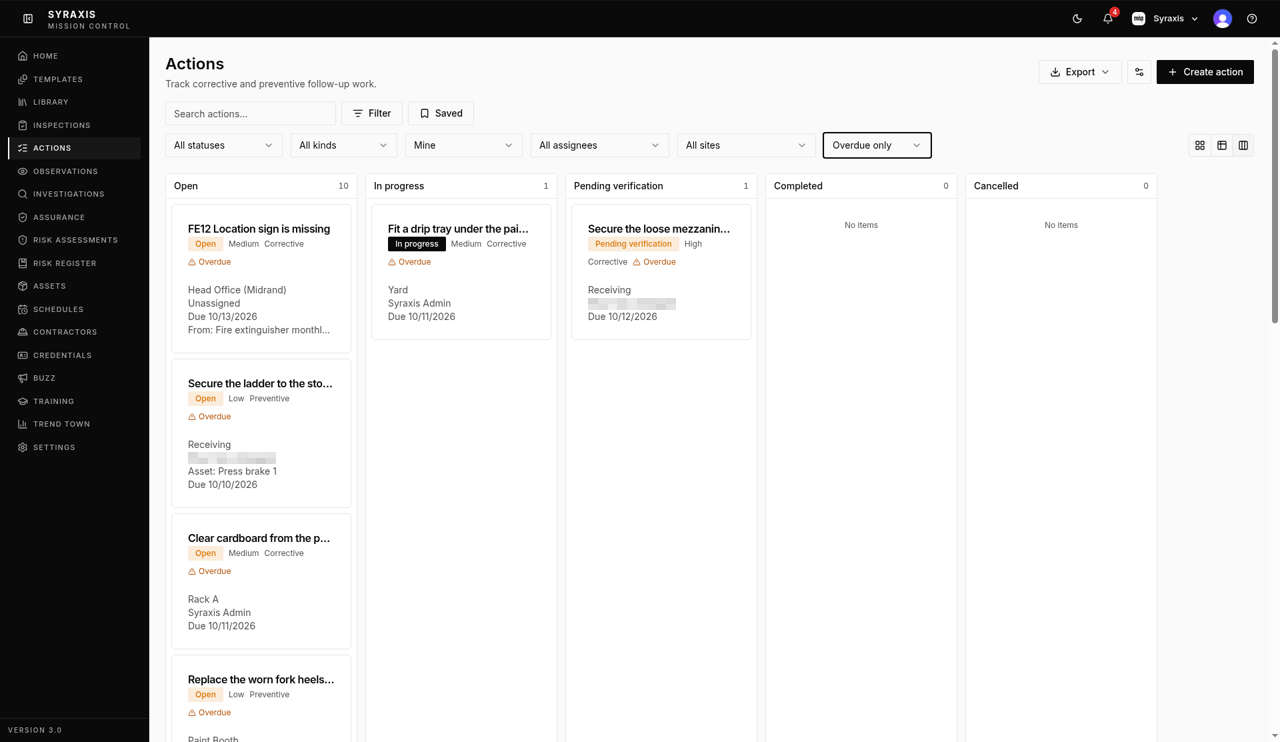
Open Actions and select Create action.
 1
1 - 2
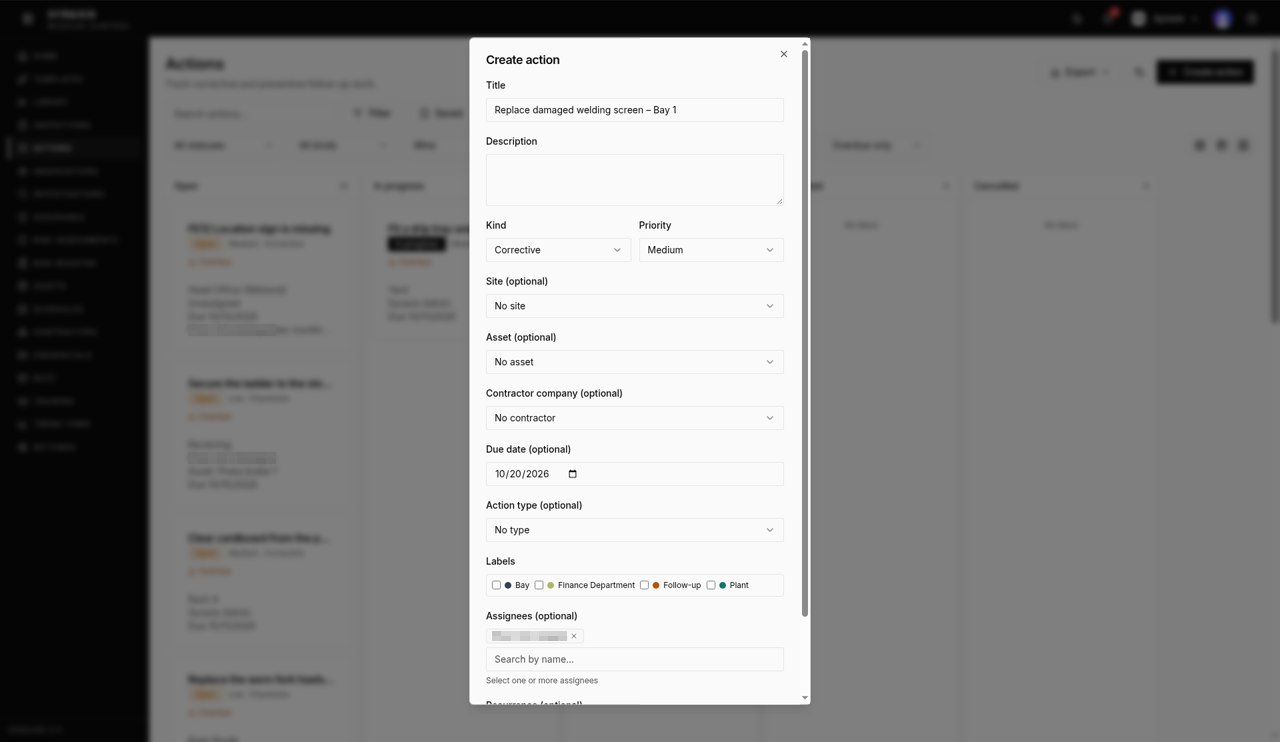
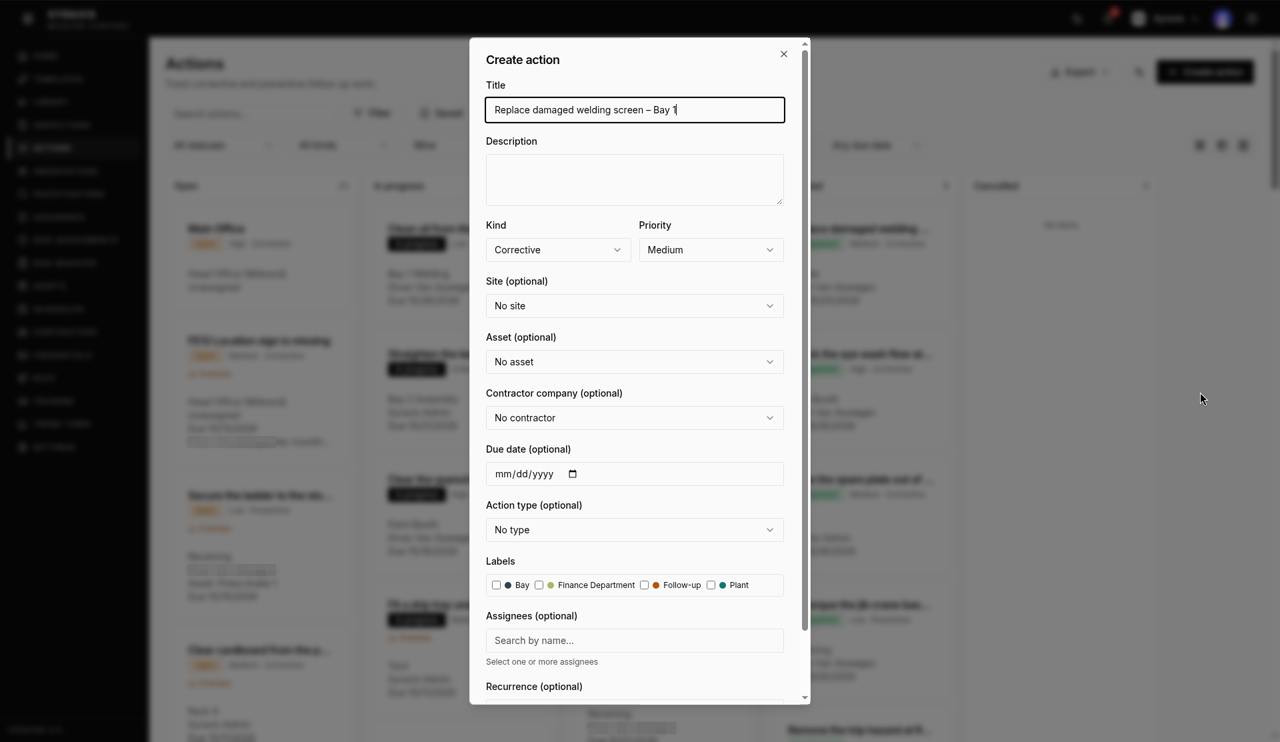
Enter a Title, for example Replace damaged welding screen – Bay 1.
 2
2 - 3
Choose the Priority.
 3
3 - 4
Choose the Assignees (optional).
4 - 5
Set the Due date (optional).
5 - 6
Select Create.
- 7
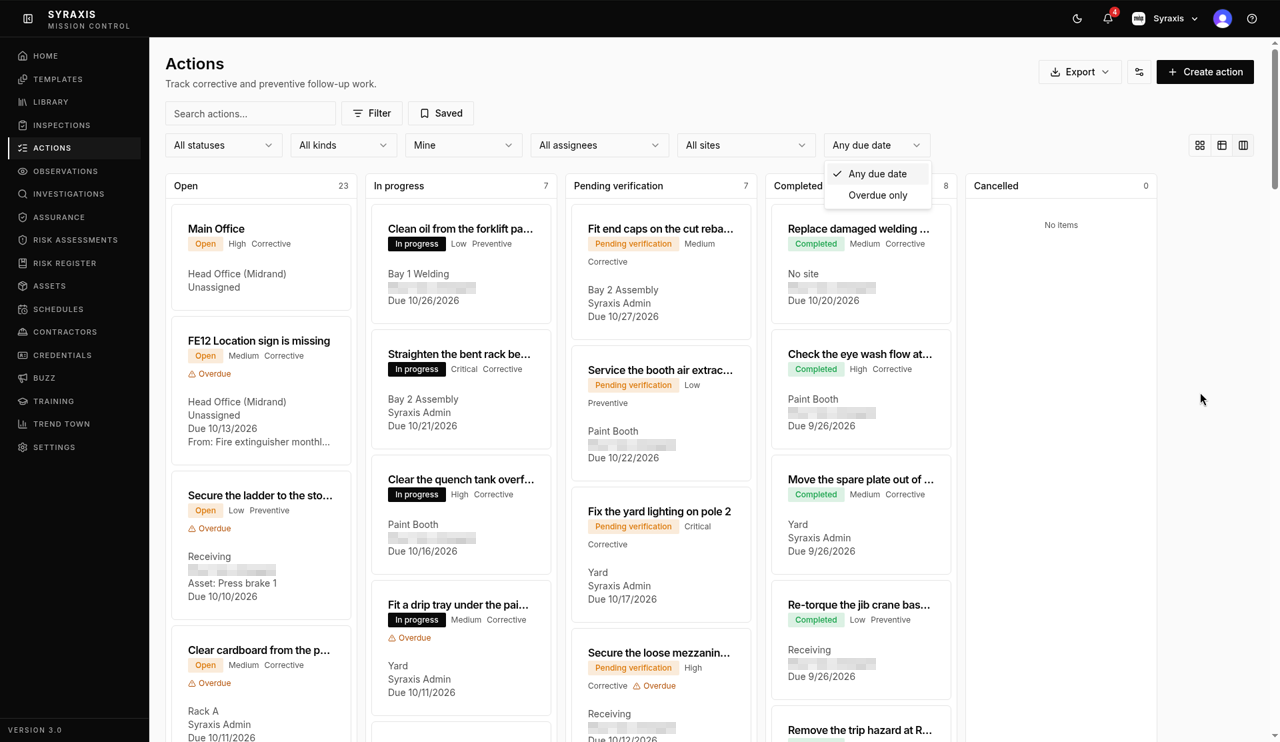
Choose Mine in the filters, or choose Overdue only under Any due date, to find your actions.
 7
7 - 8
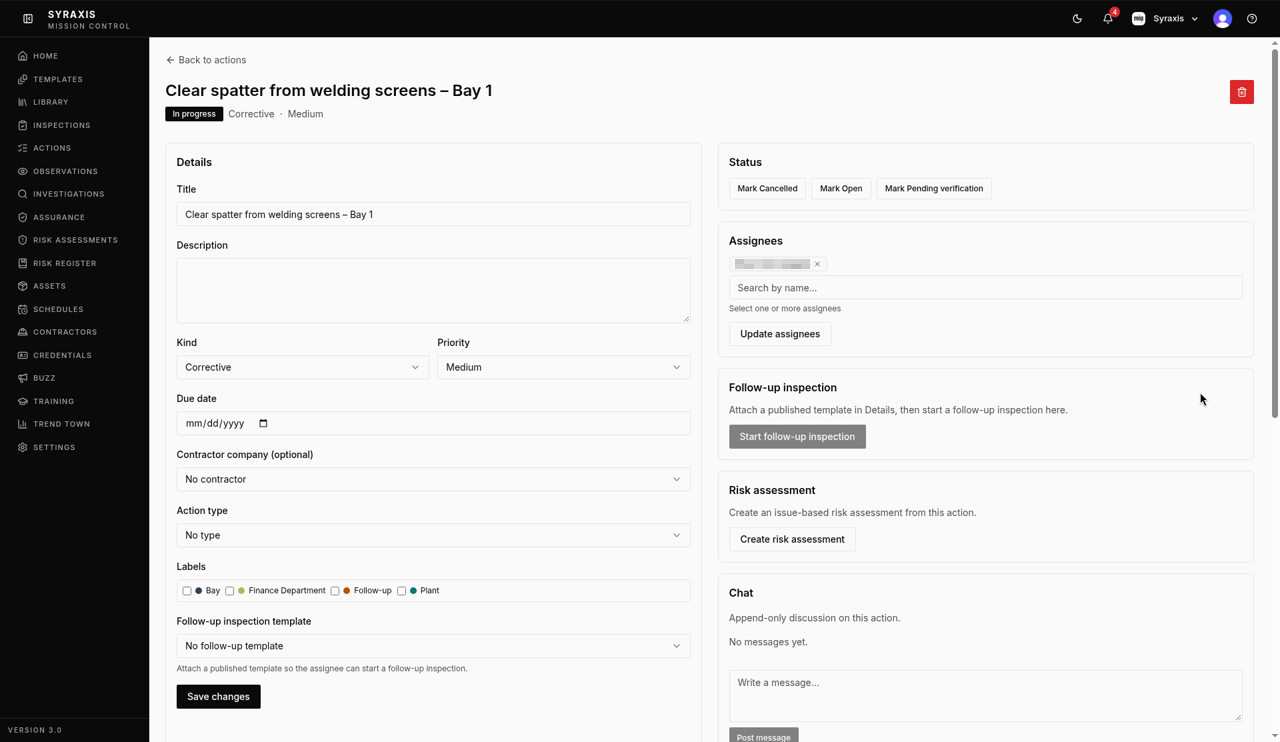
Open the action and select Mark In progress.
 8
8 - 9
Write what you did in Chat and select Post message.
9 - 10
Select Mark Pending verification when the work is done.
10 - 11
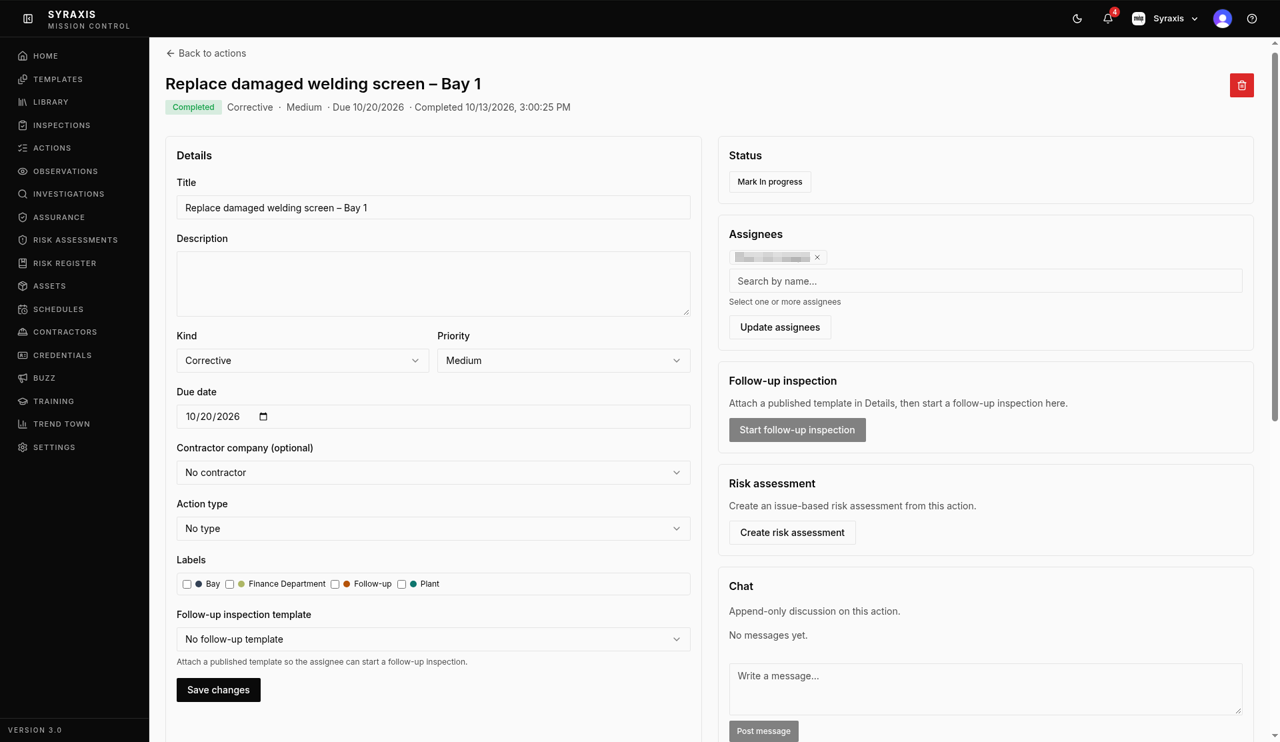
Select Mark Completed once the fix has been checked.
 11
11
Tip
Actions raised from an inspection or observation stay linked to it, so you can trace each fix back to where it came from.
What's next
- Report an observation Log a hazard or good practice and follow it up.
Still stuck?
Send us a message and tell us what you were trying to do. A screenshot helps.
Contact usUpdated 13 Oct 2026