On this page
Create a Trend Town dashboard
You will build a dashboard and add charts to it.
What you'll need
- A Pro seat (or a Pro trial).
- Admin or Site Manager role.
Steps
- 1
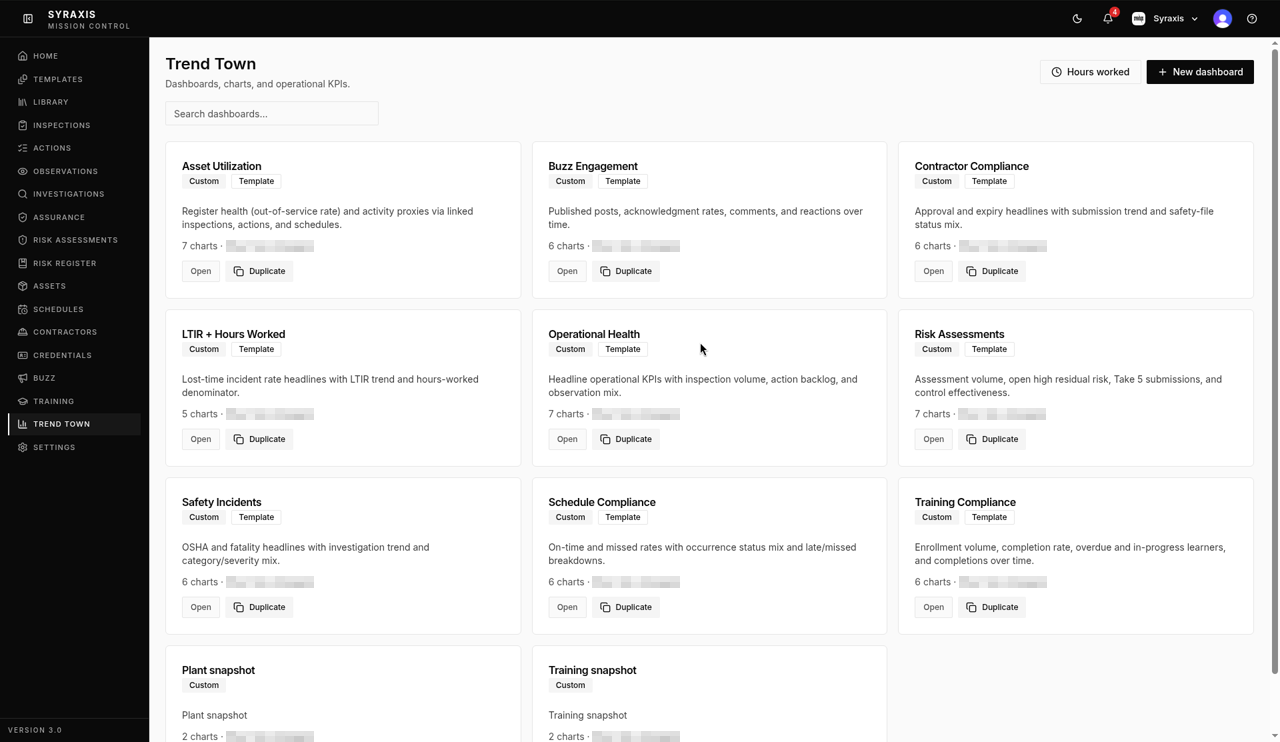
Open Trend Town and select New dashboard.
 1
1 - 2
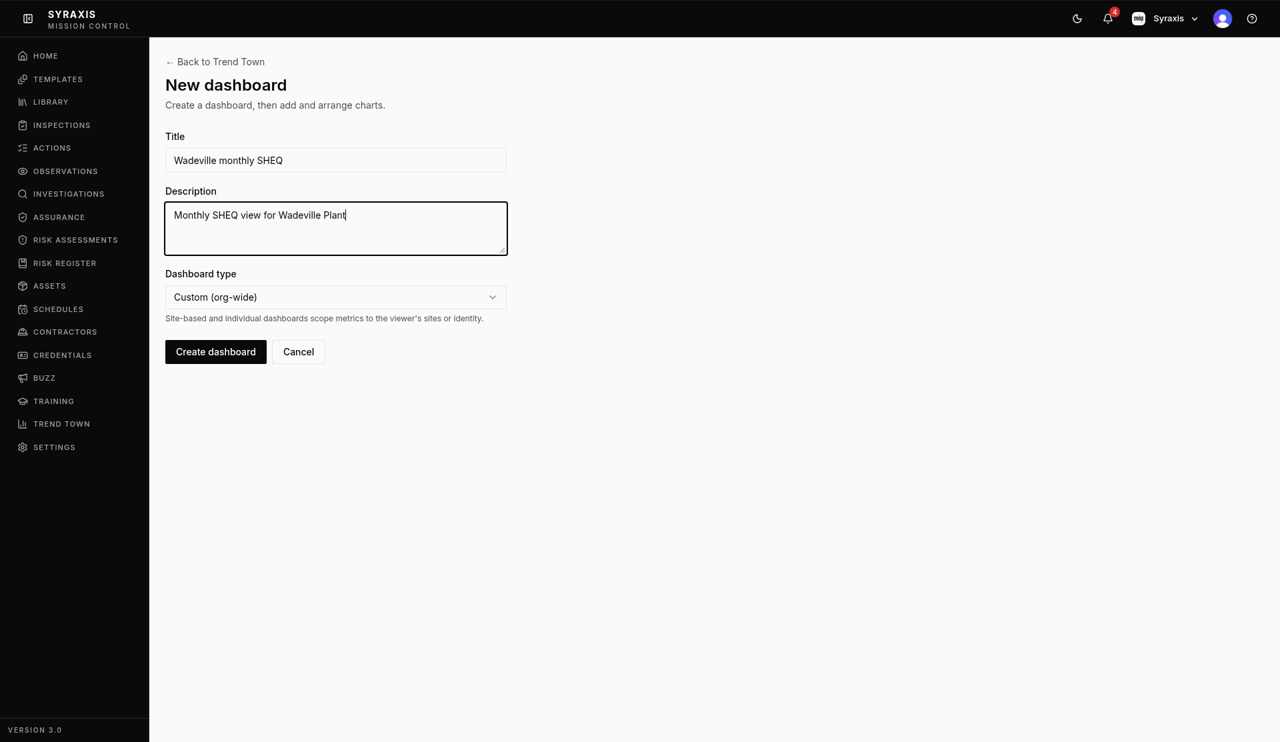
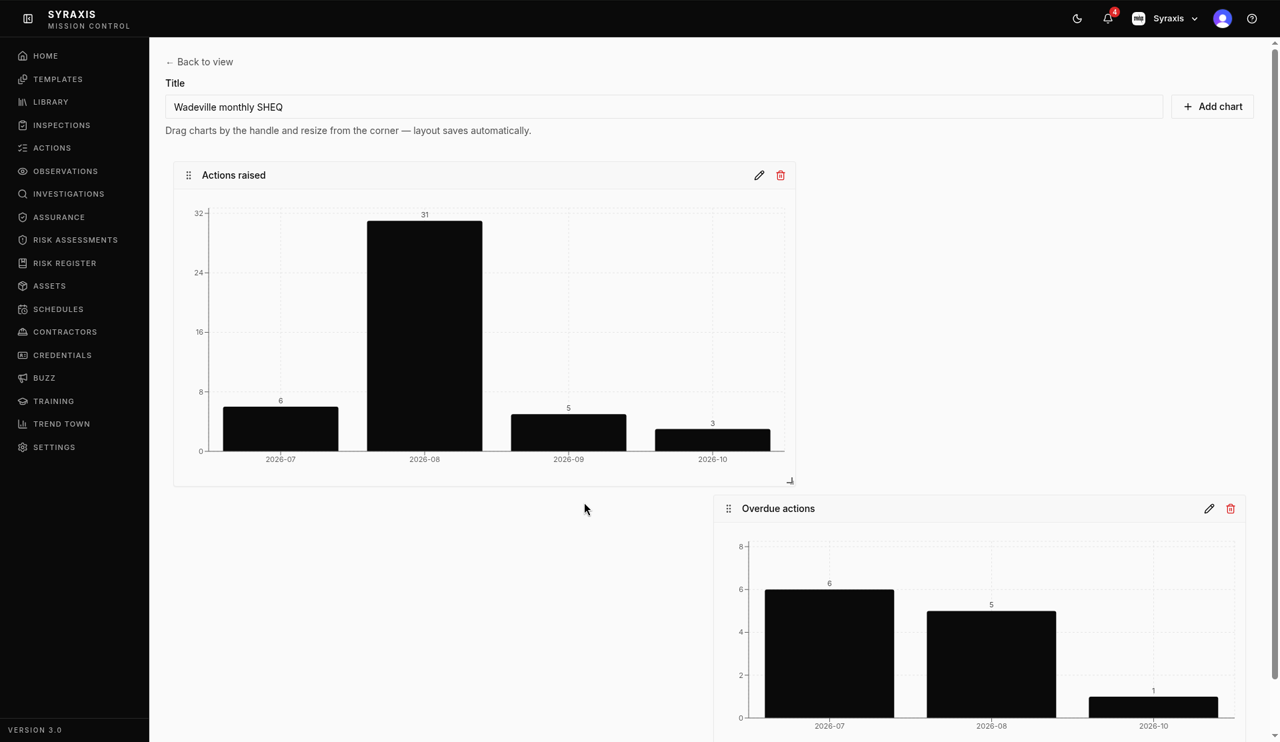
Enter a Title, for example Wadeville monthly SHEQ, and a Description.
 2
2 - 3
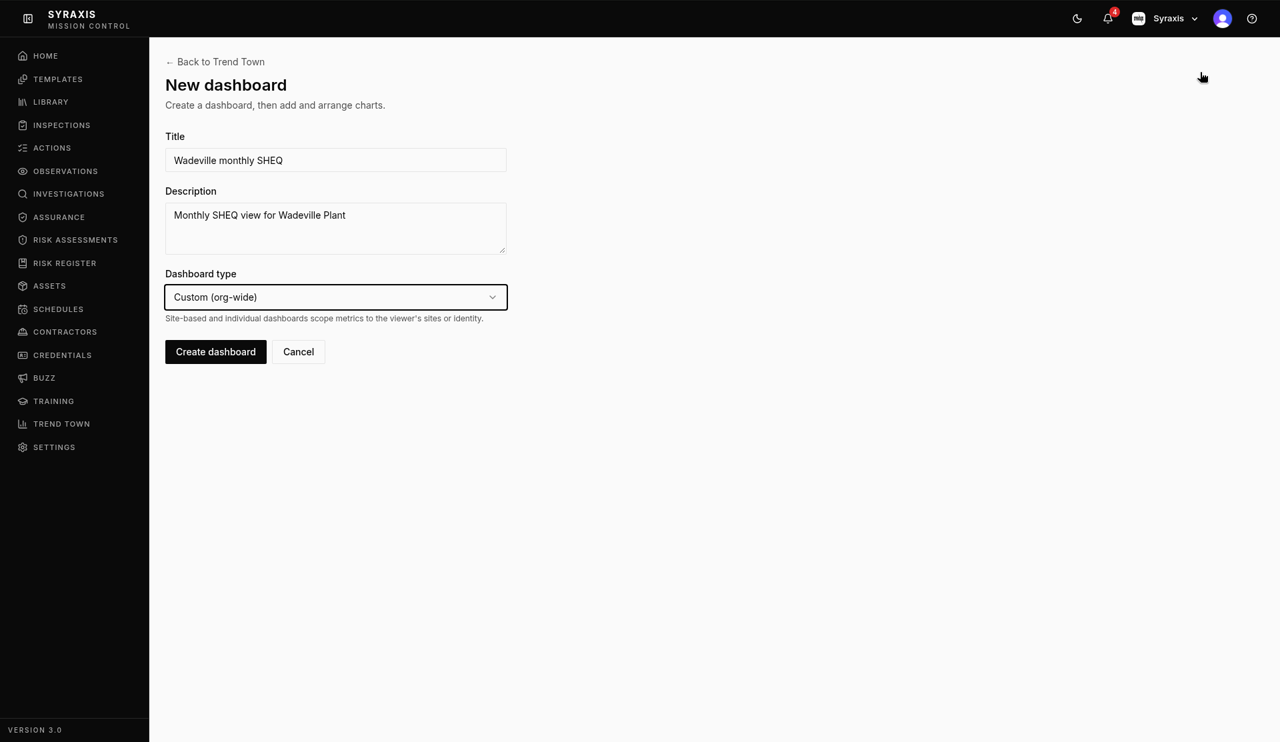
Choose a Dashboard type: Custom (org-wide), Site-based or Individual-based.
 3
3 - 4
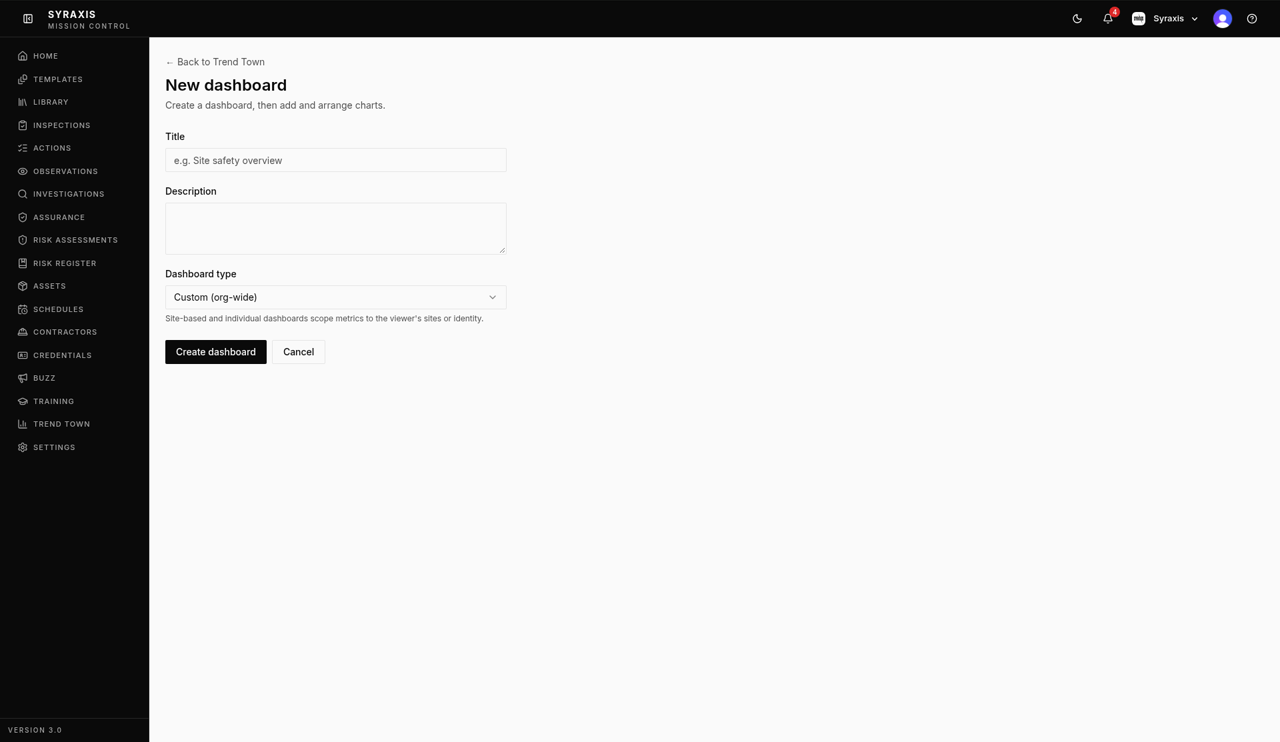
Select Create dashboard.
 4
4 - 5
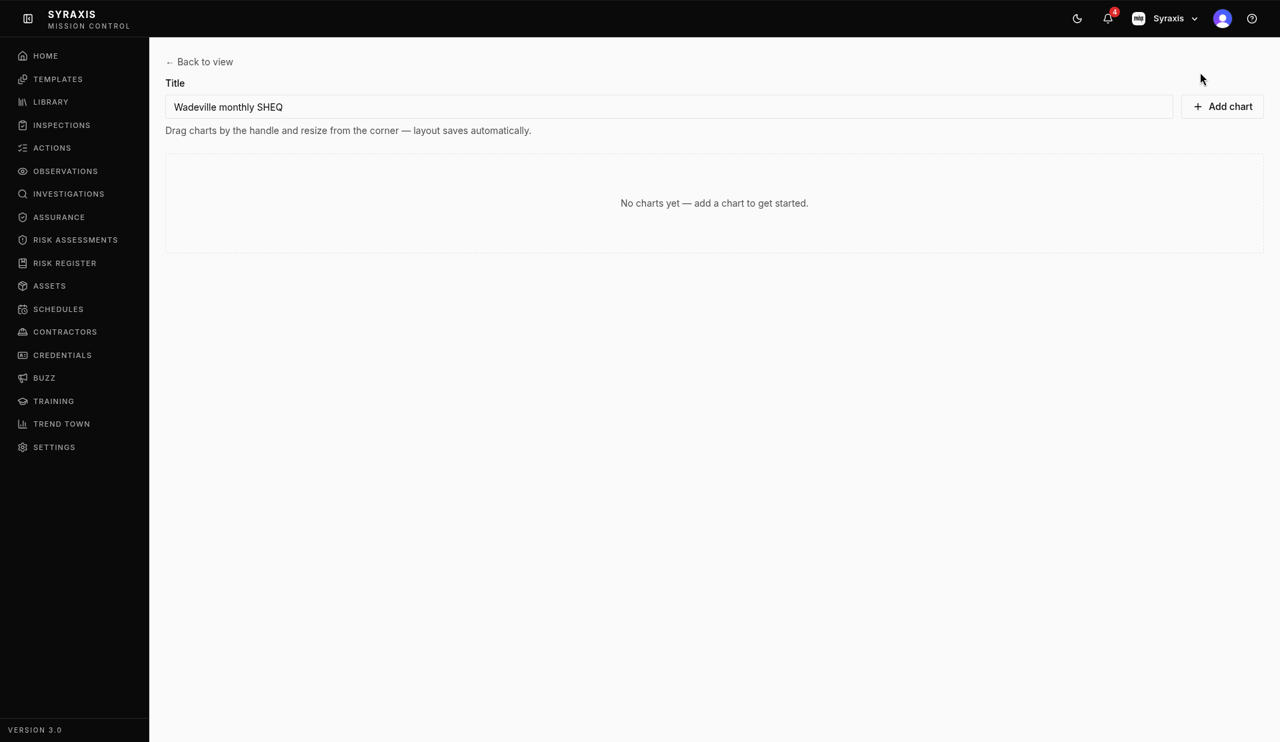
Select Add chart.
 5
5 - 6
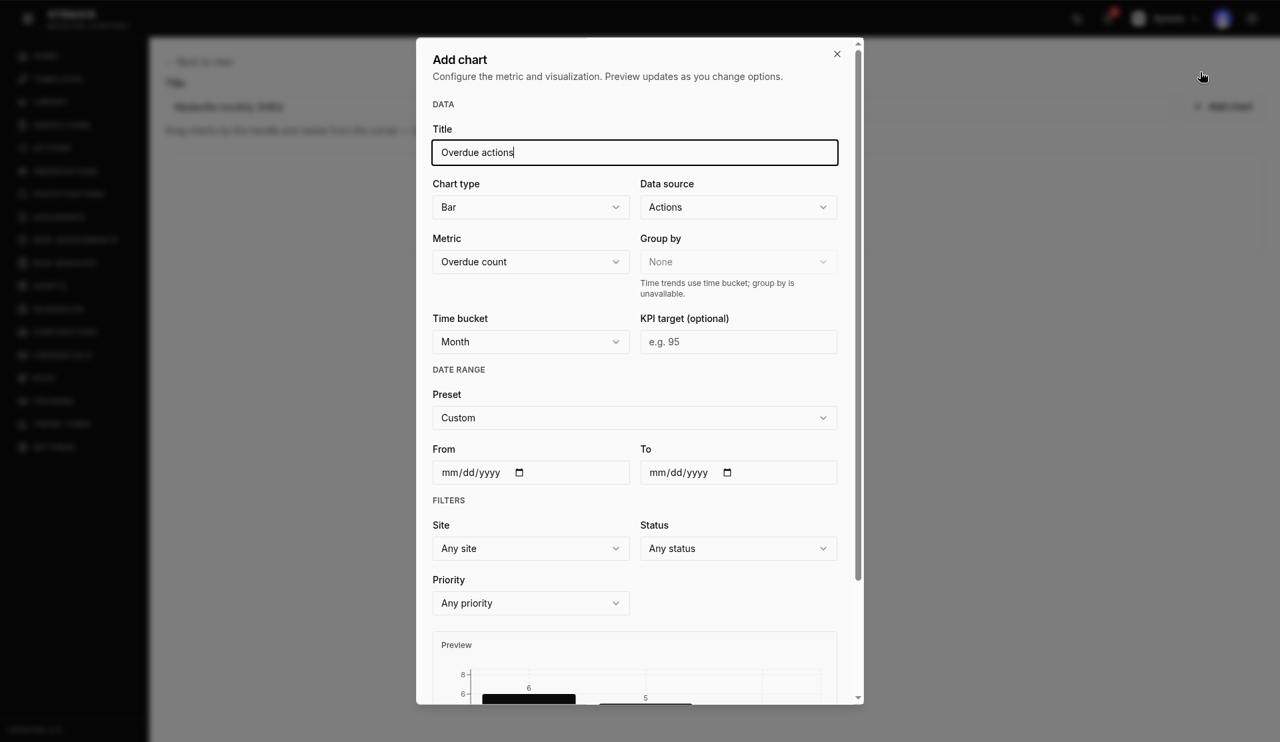
Under Metric, choose Overdue count to chart how many actions are overdue each month.
 6
6 - 7
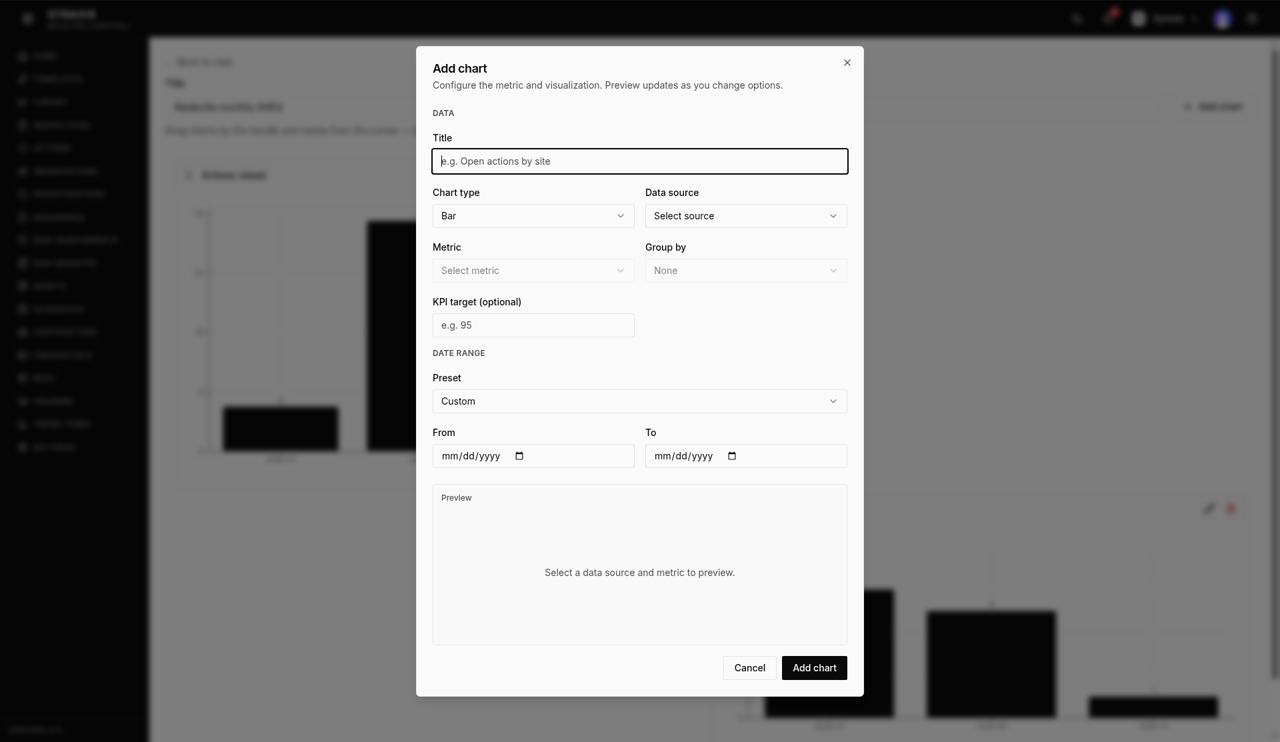
Choose the Chart type and select Add chart.
 7
7 - 8
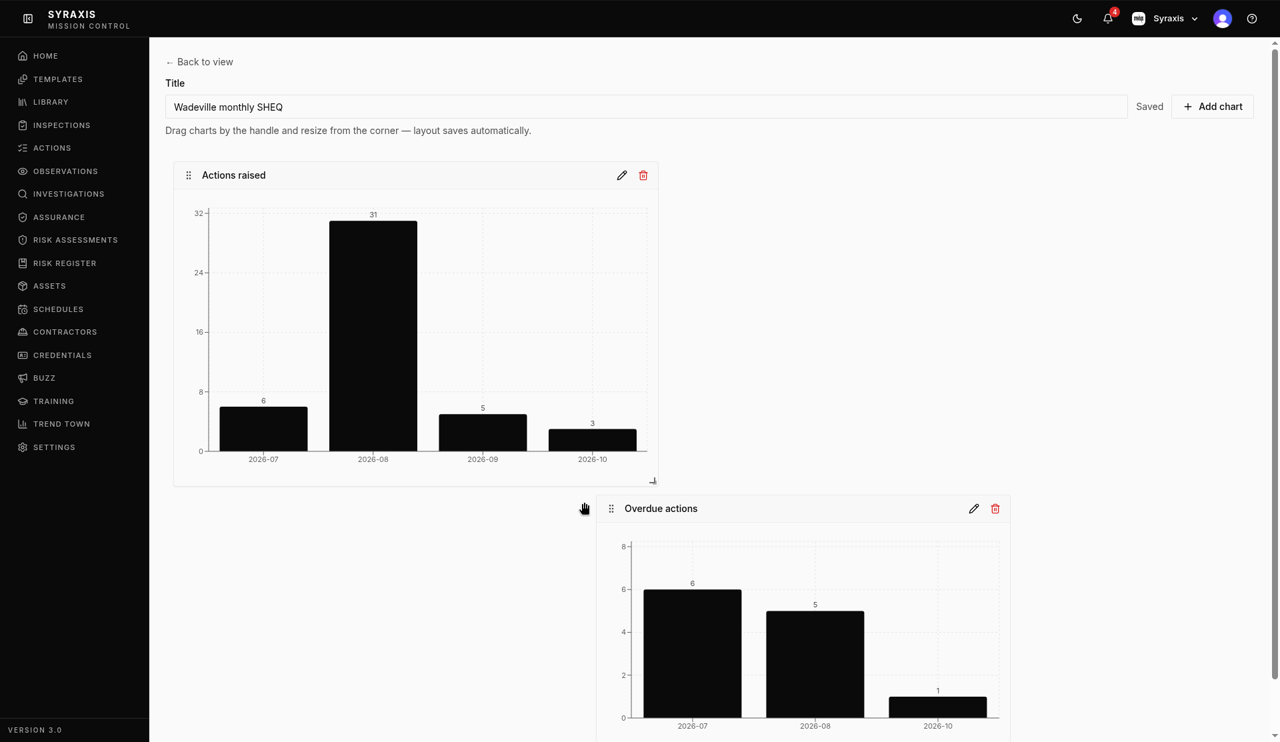
Drag a chart by its handle (⠇) to move it.
 8
8 - 9
Drag the bottom-right corner of a chart to resize it. The layout saves automatically, and you'll see Saving… then Saved.
 9
9
Tip
To change the period a chart covers, select the pencil on the chart and pick a date preset in its setup.
What's next
- Seats and plans Understand Free, Standard and Pro seats and assign them.
Still stuck?
Send us a message and tell us what you were trying to do. A screenshot helps.
Contact usUpdated 13 Oct 2026