On this page
Review a safety file
You will check a contractor's safety file, then approve it or send it back.
AdminSite ManagerAll plans
What you'll need
- A contractor company that has submitted a safety file.
Steps
- 1
Open Contractors and select Safety files.
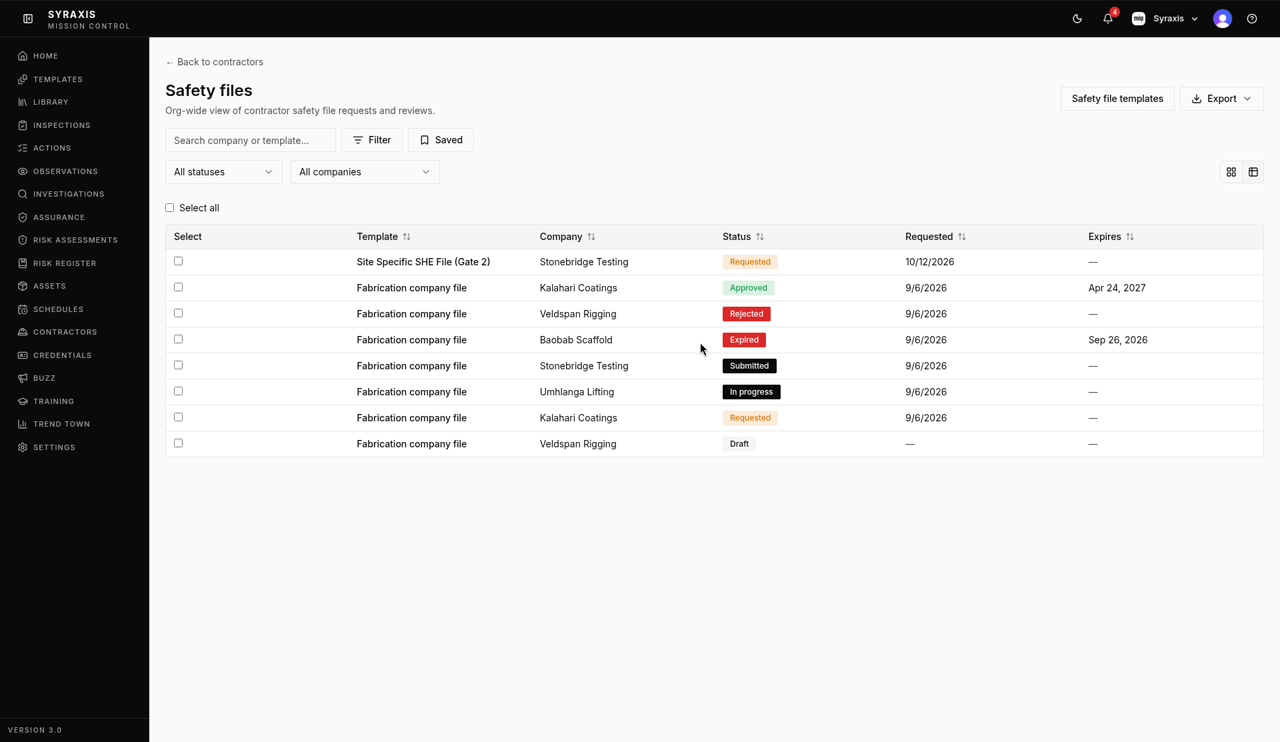 1
1 - 2
Choose Submitted in the All statuses filter and open the file.
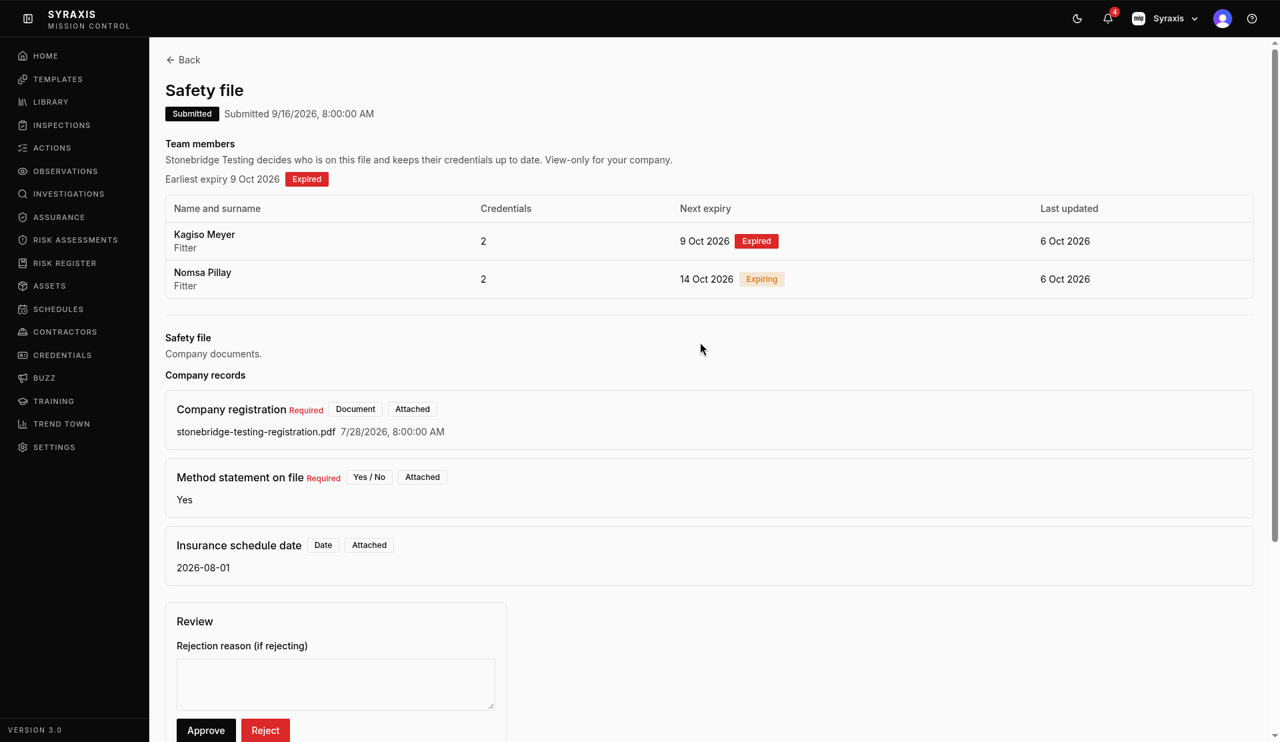 2
2 - 3
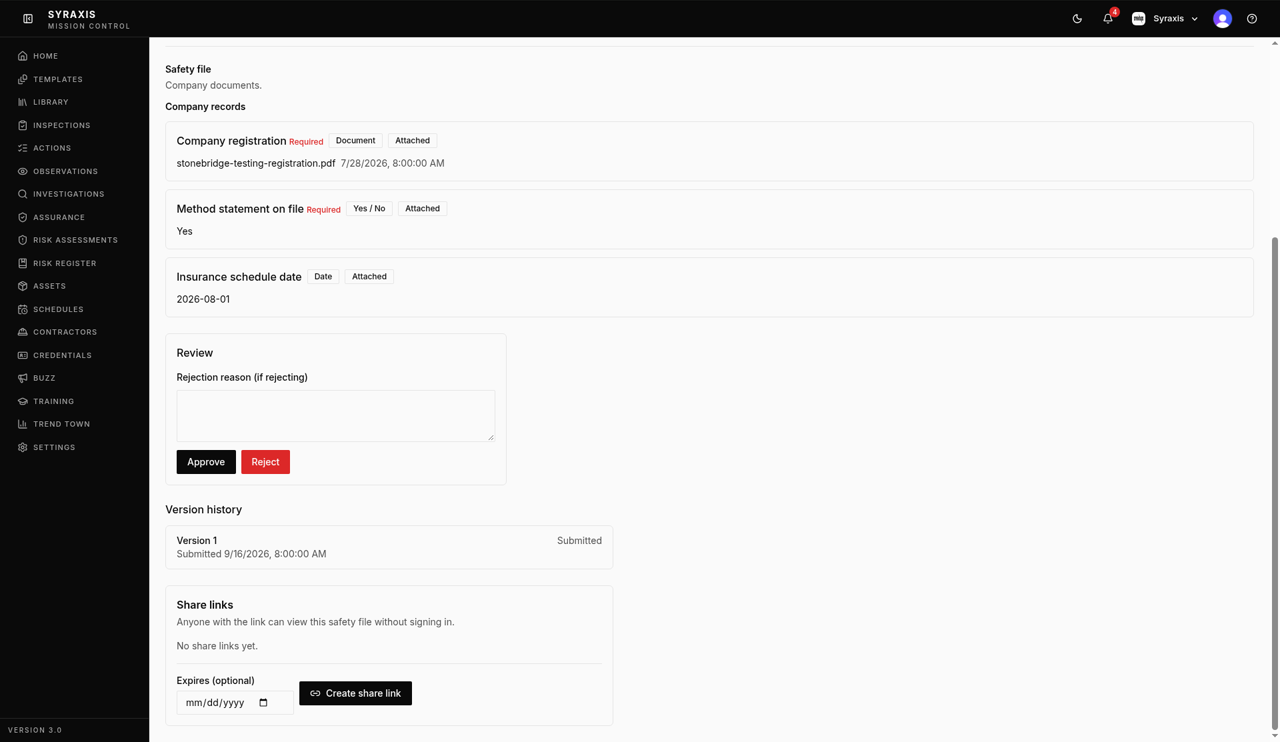
Check that each item's badge shows Attached. If an item says No files uploaded, it's missing.
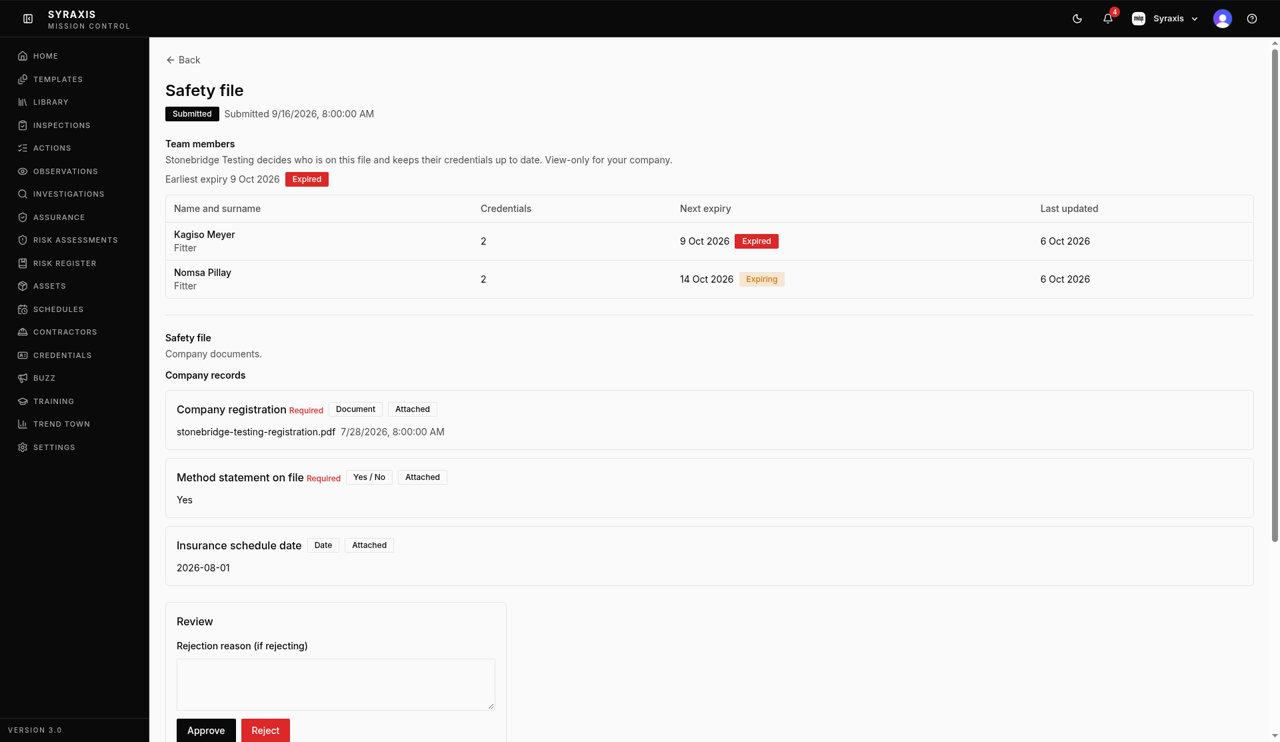 3
3 - 4
Check the Expires on date on each certificate.
 4
4 - 5
Select Approve if everything is in order.
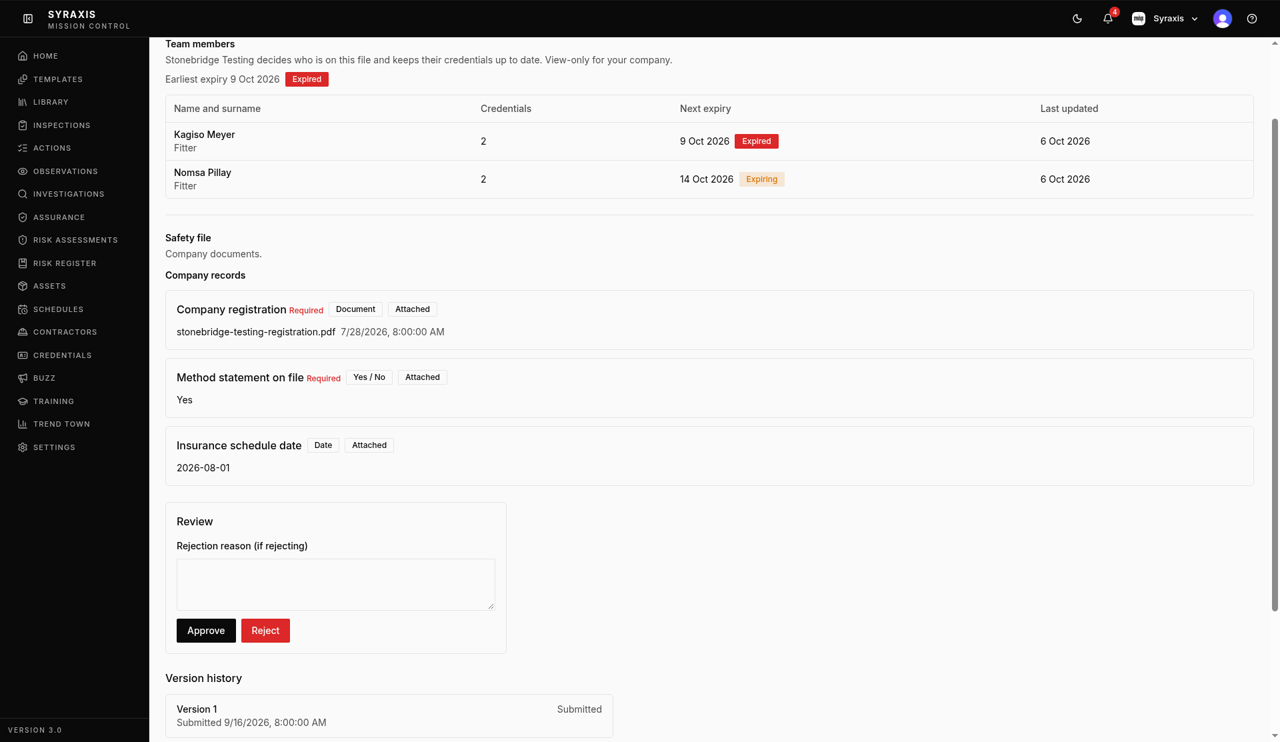 5
5 - 6
Or enter a Rejection reason (if rejecting) and select Reject.
 6
6
Note
The people on the file are listed under Team members.
Careful
You must enter a reason before you can reject.
What's next
- Upload your safety file (contractors) Complete your safety file and send it for review.
Was this helpful?Thanks for telling us.
Still stuck?
Send us a message and tell us what you were trying to do. A screenshot helps.
Contact usUpdated 13 Oct 2026