On this page
Give a contractor a monthly report
You will publish a monthly report and assign it to contractor companies.
What you'll need
- Admin or Site Manager role.
- A contractor company (see Add a contractor company).
Steps
- 1
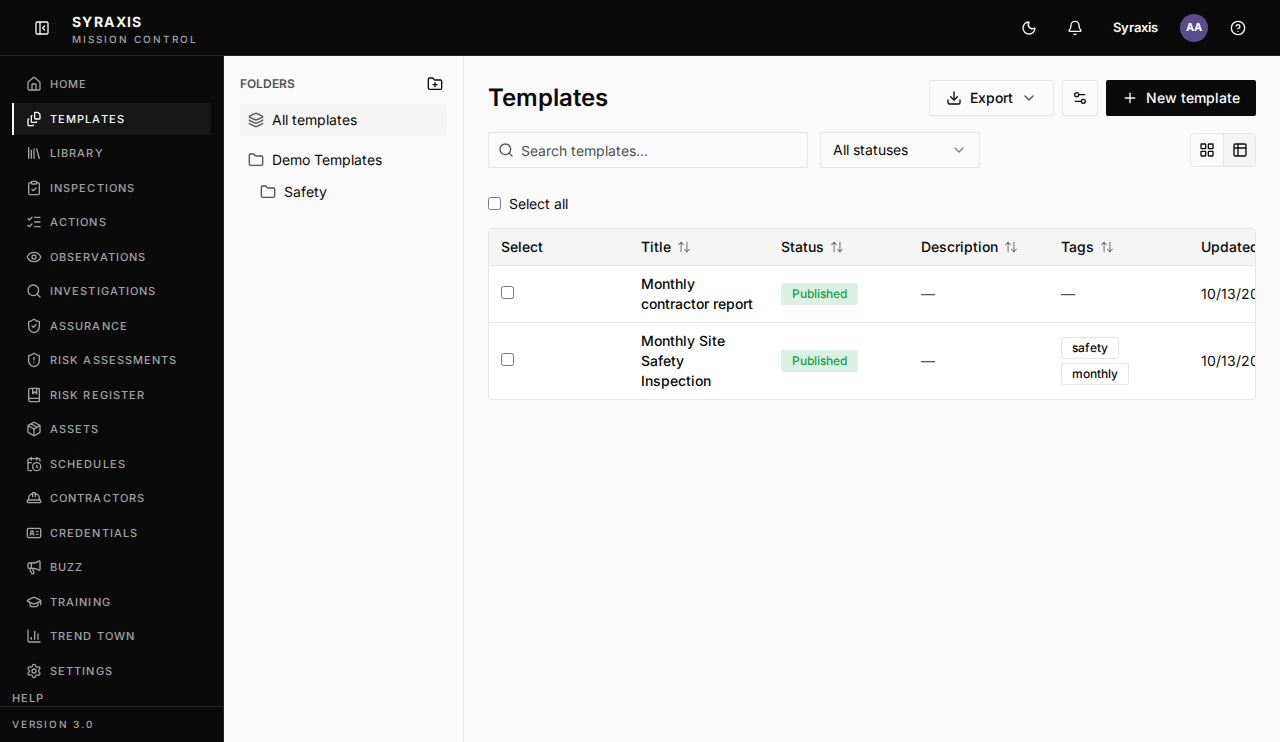
Open Templates and select New template.
 1
1 - 2
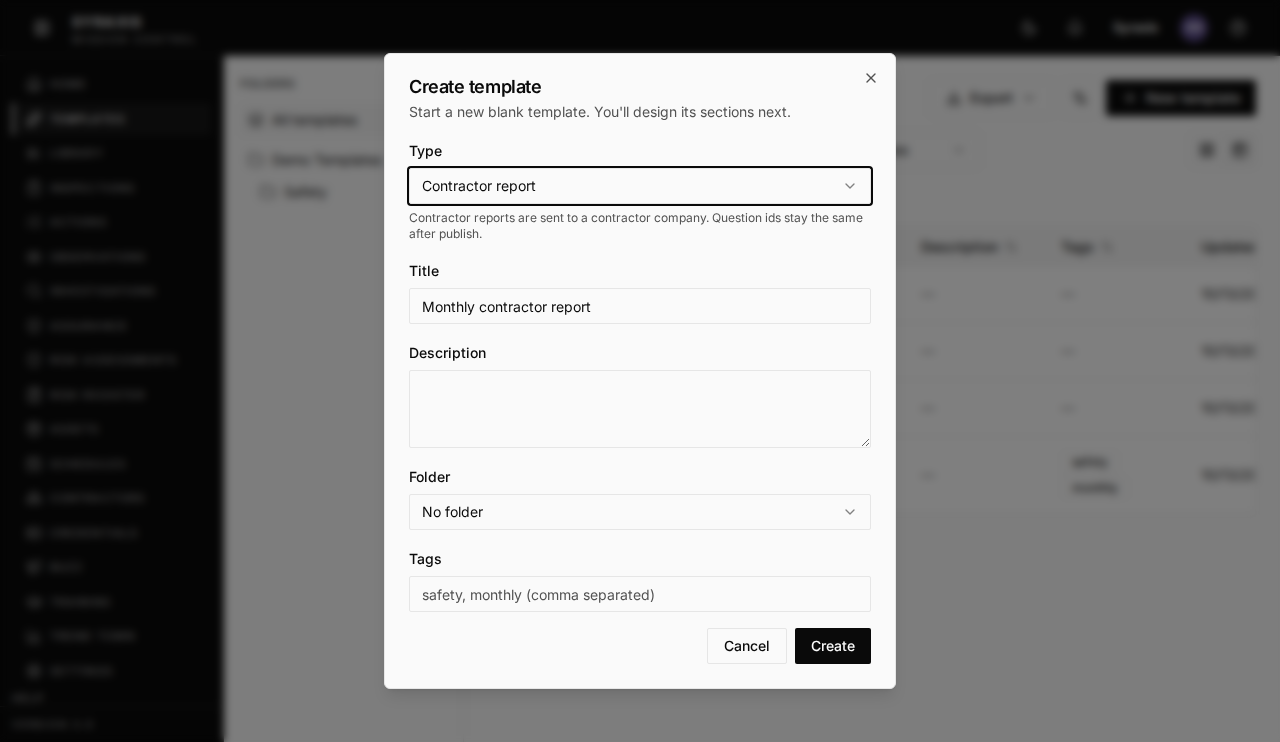
Enter a name, for example Monthly contractor report. Under Type, choose Contractor report.
 2
2 - 3
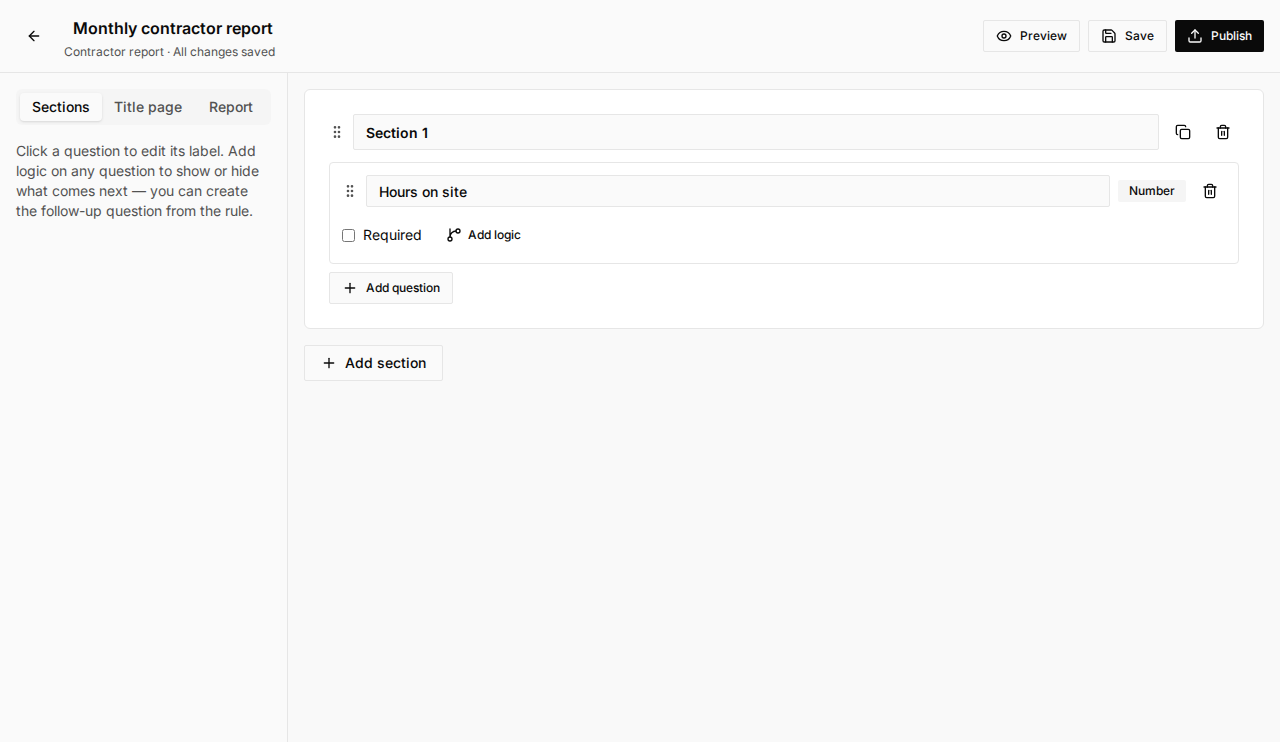
Add your questions.
 3
3Tip
If you want charts later, use the Number type for number questions, not Text.
- 4
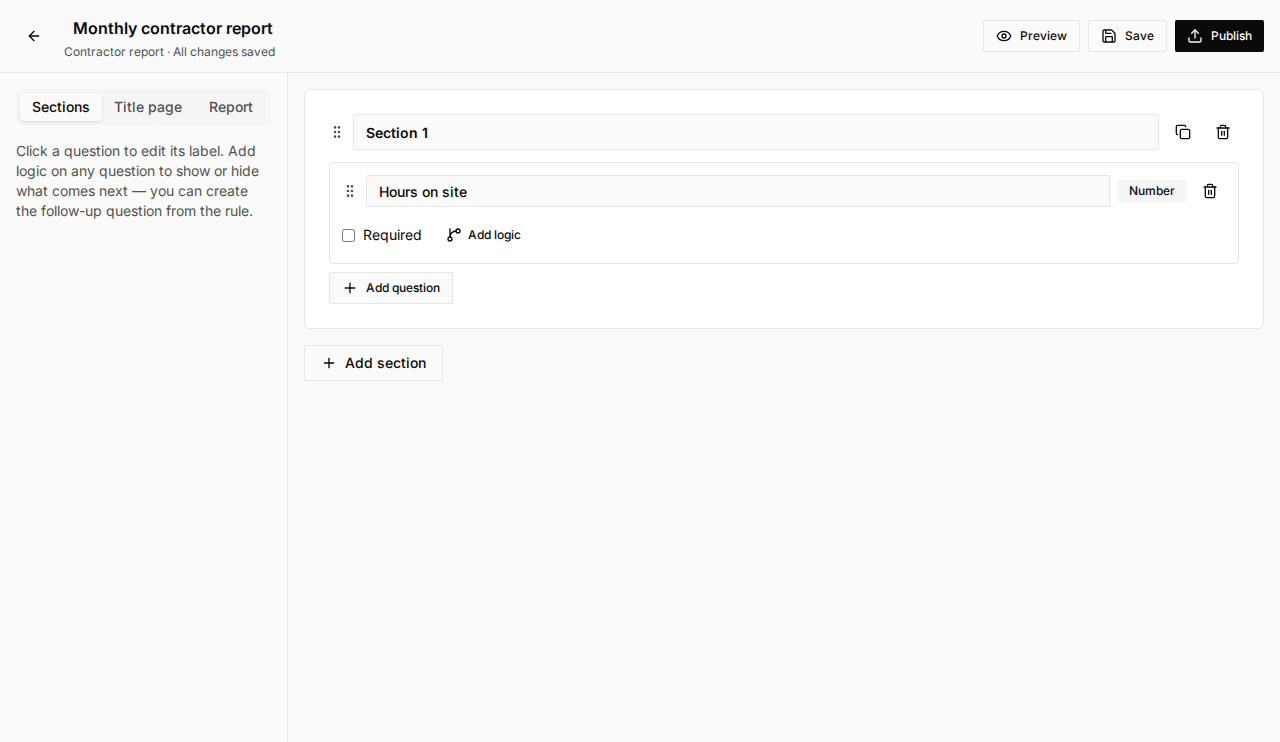
Select Save, then Publish and confirm. Only published templates can be assigned.
 4
4 - 5
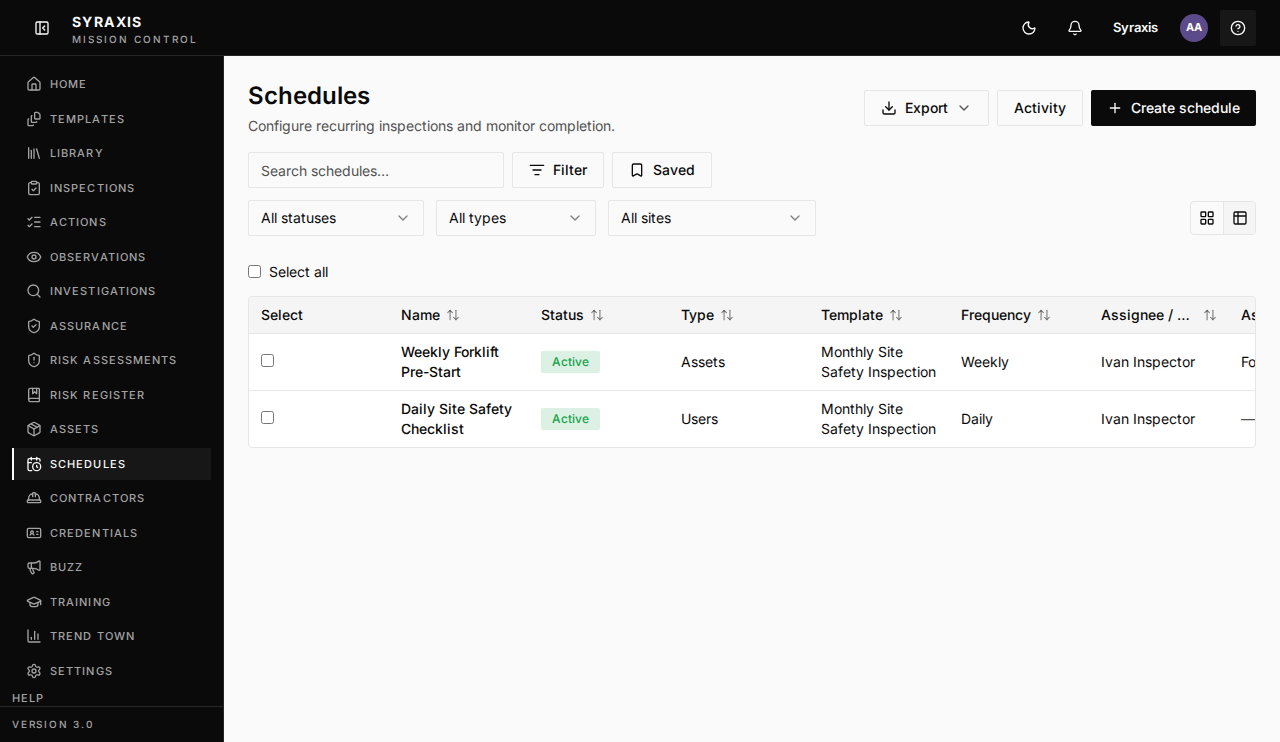
Open Schedules and select Create schedule.
 5
5 - 6
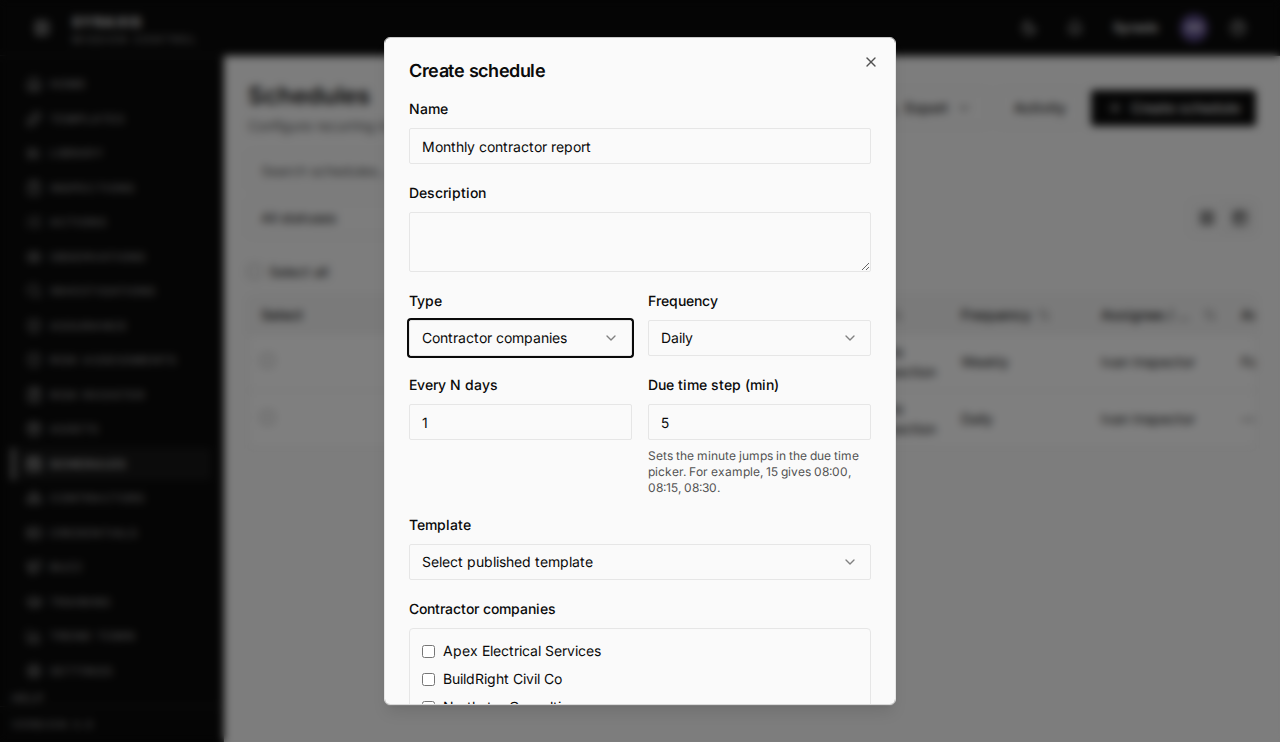
Enter a name. Under Type, choose Contractor companies.
 6
6 - 7
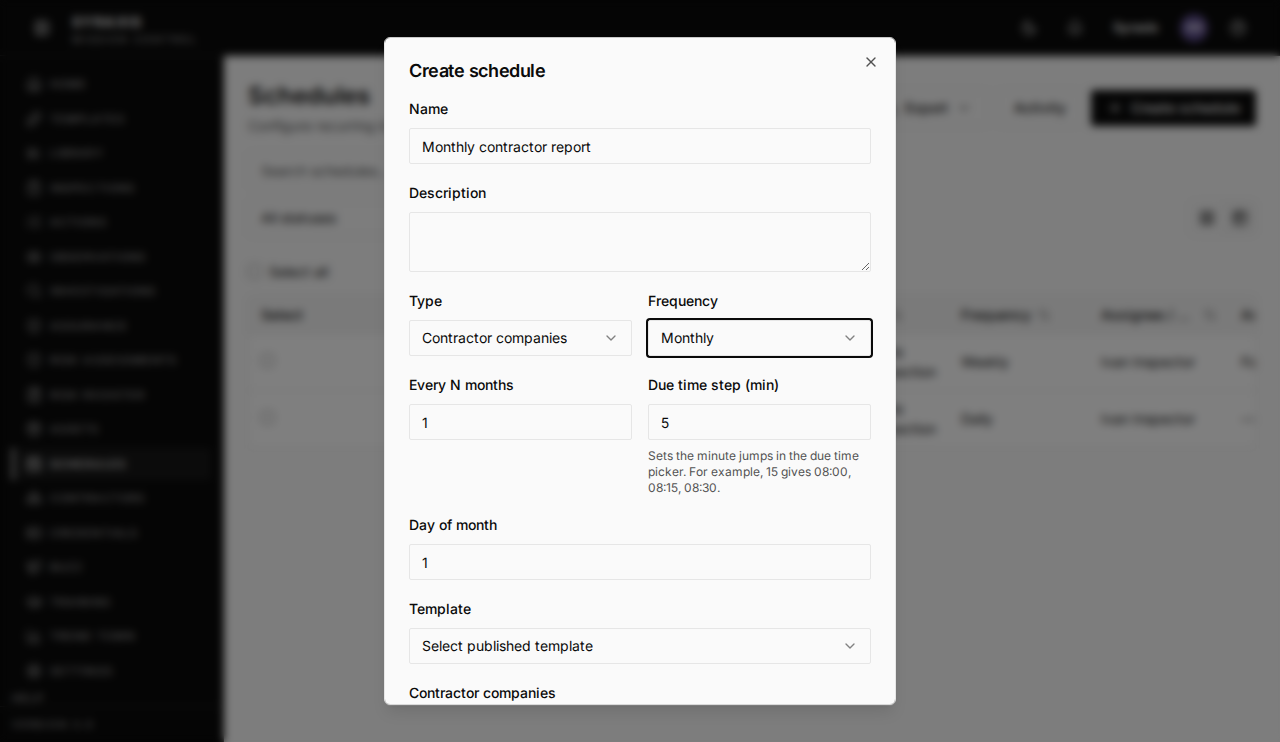
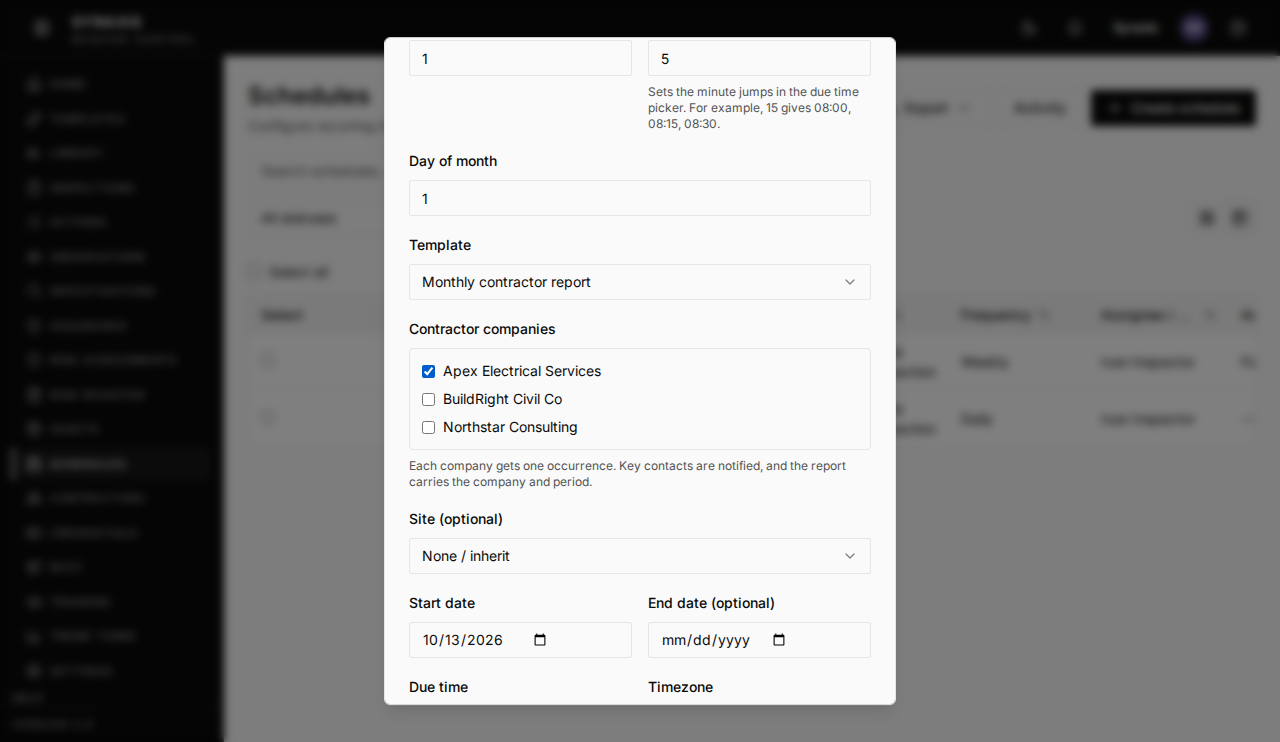
Under Frequency, choose Monthly, set Every N months to 1, and pick the Day of month it's due.
 7
7 - 8
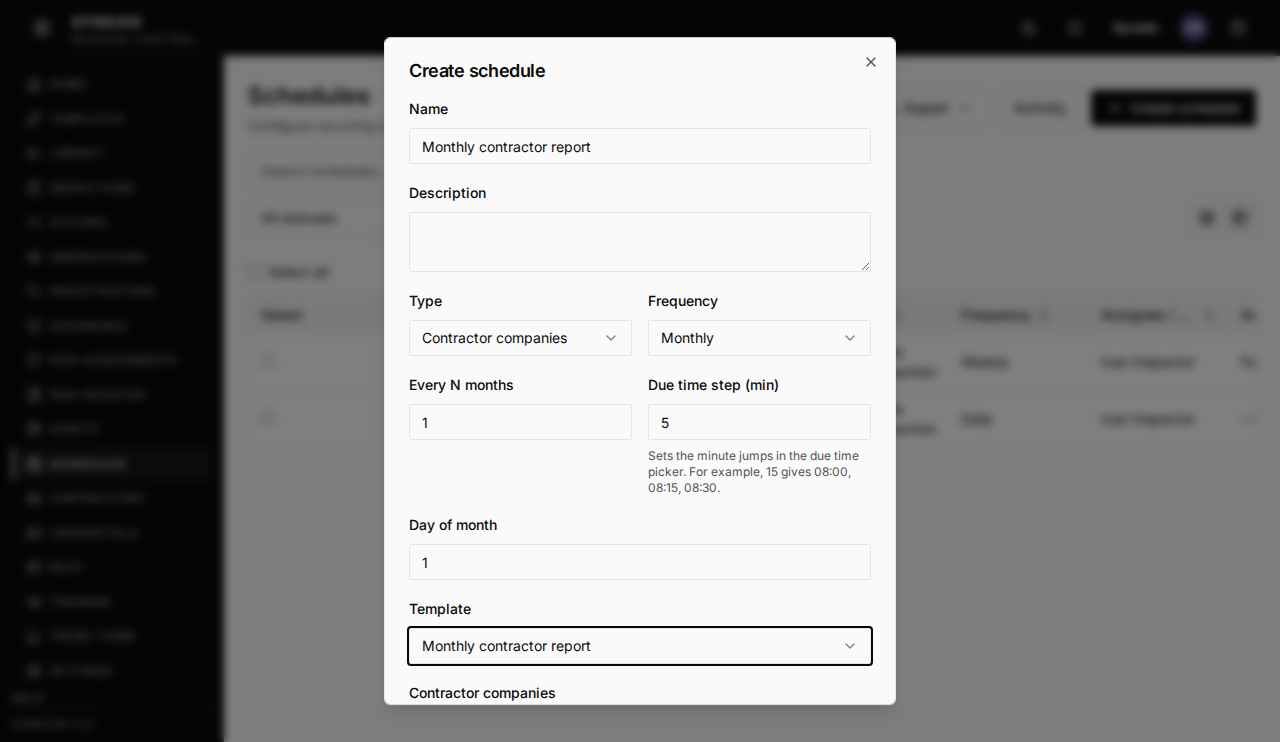
Under Template, pick the report you published.
 8
8 - 9
Tick the contractor companies that must send it in. Choose a Site if the report is for one site.
 9
9 - 10
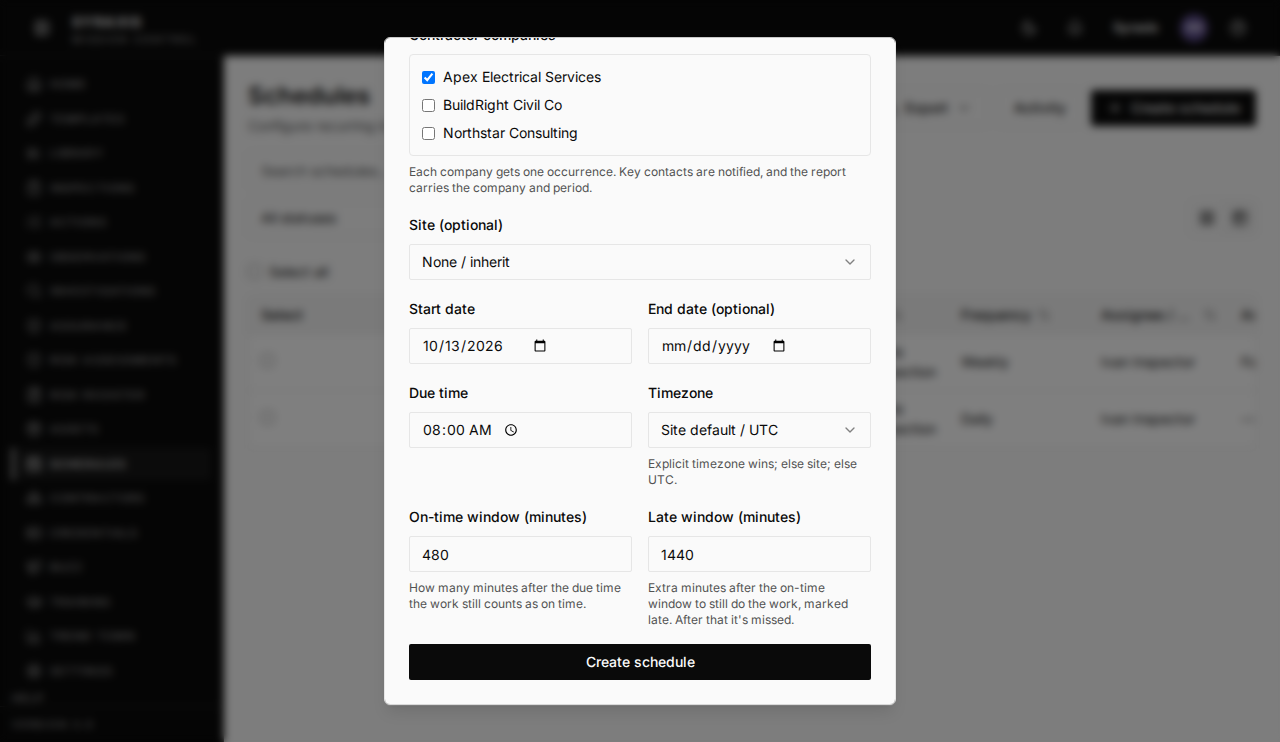
Set the Start date and Due time, check that Timezone says your org's timezone, and select Create schedule. Each company gets its own report every month, and the company's key contact is notified.
 10
10 - 11
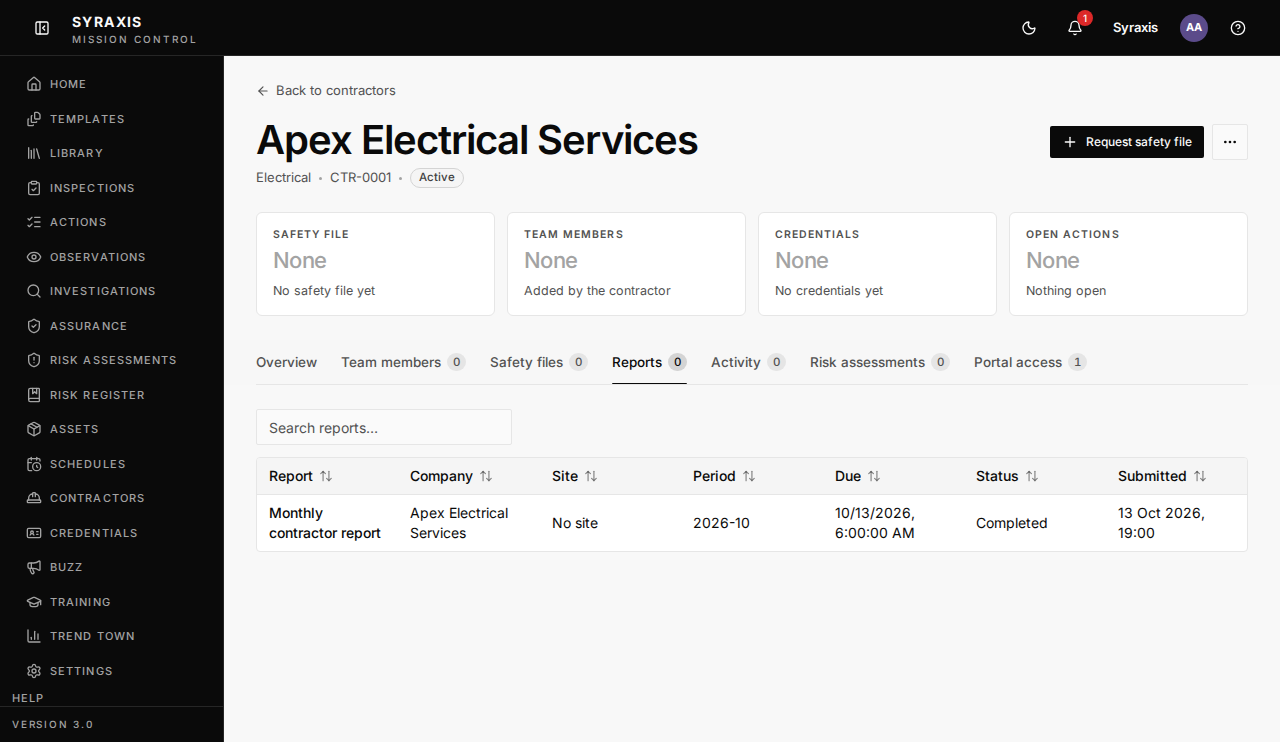
Open Contractors, open the company, and select the Reports tab. Search the list. The Submitted column shows when they sent it in.
 11
11 - 12
For charts, open Trend Town, open a dashboard, add a chart, and pick the data source Contractor report answers. Pro
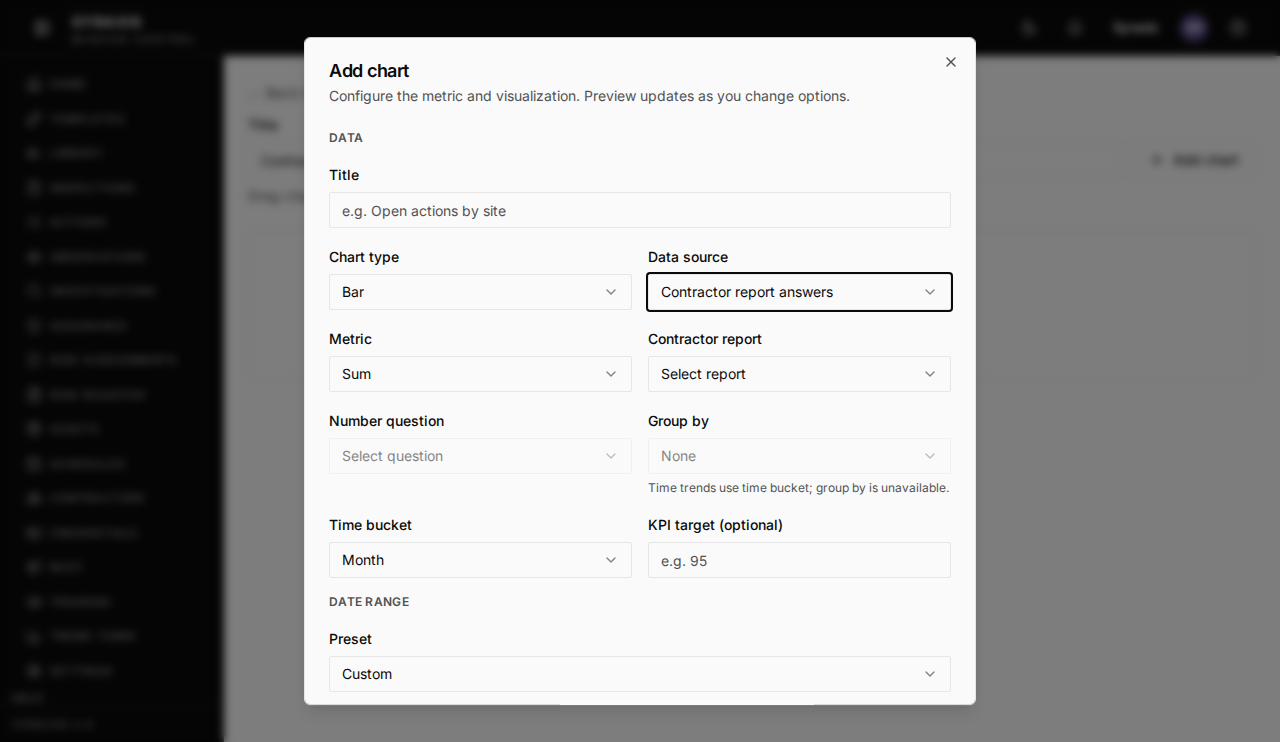 12
12
Note
You can leave the On-time window and Late window fields as they are.
Note
Trend Town charts need a Pro seat, or a Pro trial.
What's next
- Review a safety file Check a contractor's safety file, then approve it or send it back.
Still stuck?
Send us a message and tell us what you were trying to do. A screenshot helps.
Contact usUpdated 13 Oct 2026