On this page
Create and publish a template
You will build a checklist and make it live so your team can use it.
What you'll need
- Role: Admin or Site Manager.
- Plan: any (Free, Standard or Pro).
- Optional: a template folder to keep things tidy. If you don't have one, choose No folder. You can move it later.
- Optional: your sites set up first (see Set up your sites and areas), so people can pick a site when they start an inspection.
Steps
- 1
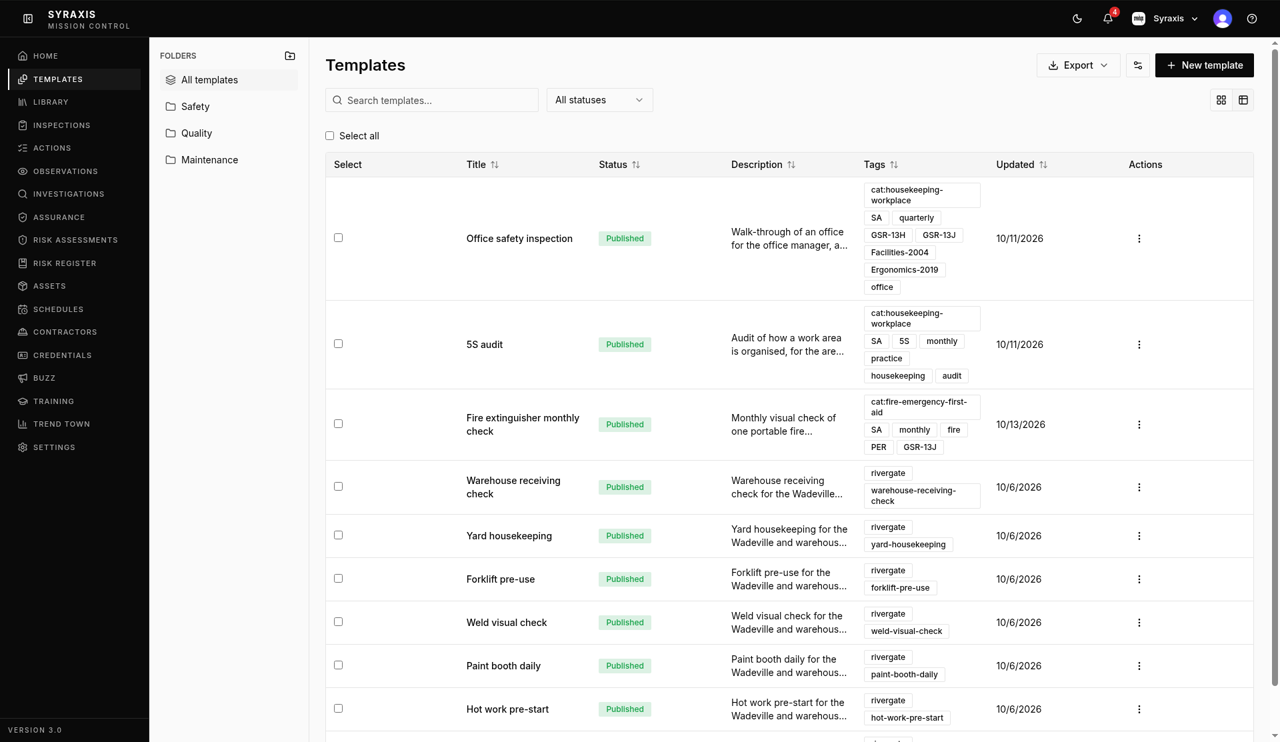
Open Templates and select New template.
 1
1 - 2
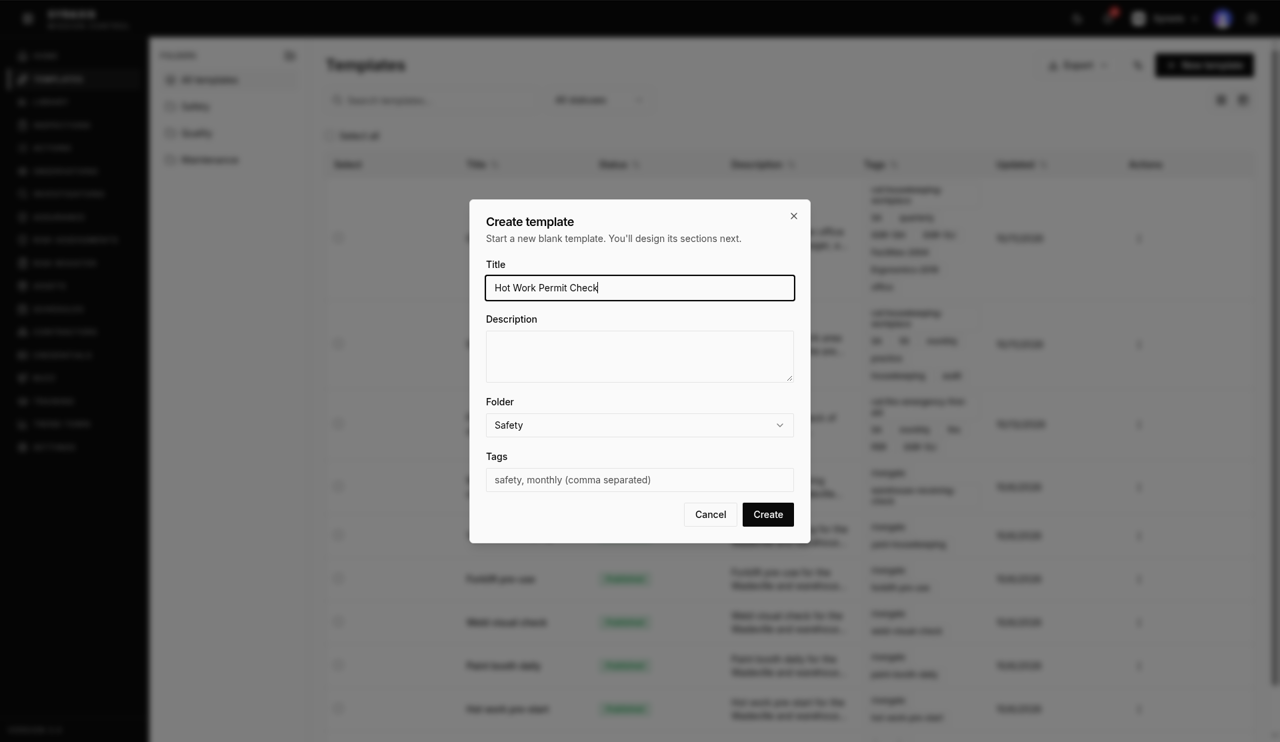
Enter a Title, for example Hot Work Permit Check, choose a Folder, such as Safety, then select Create.
 2
2Tip
Use a title people will recognise on site, like "Forklift Pre-use Check". You can add Tags such as safety, monthly to make templates easy to find. You can rename a template at any time without publishing it again.
- 3
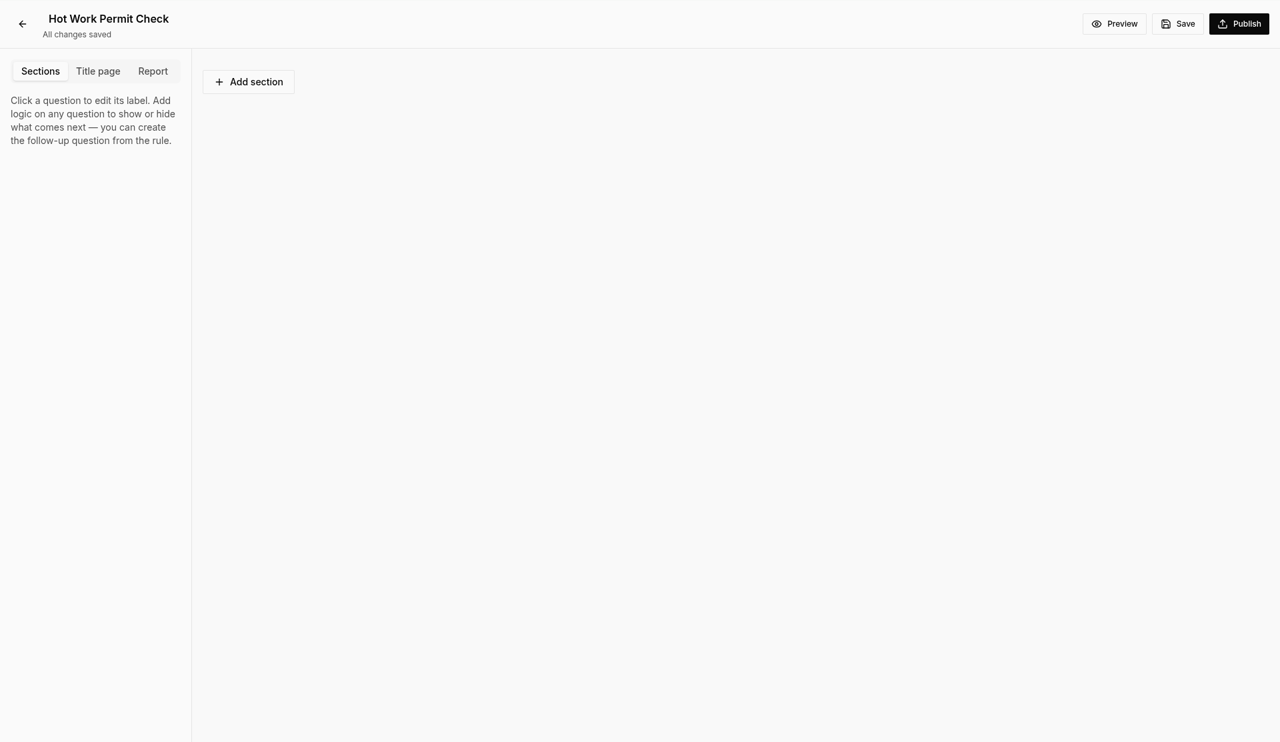
Select Add section to group your questions.
 3
3 - 4
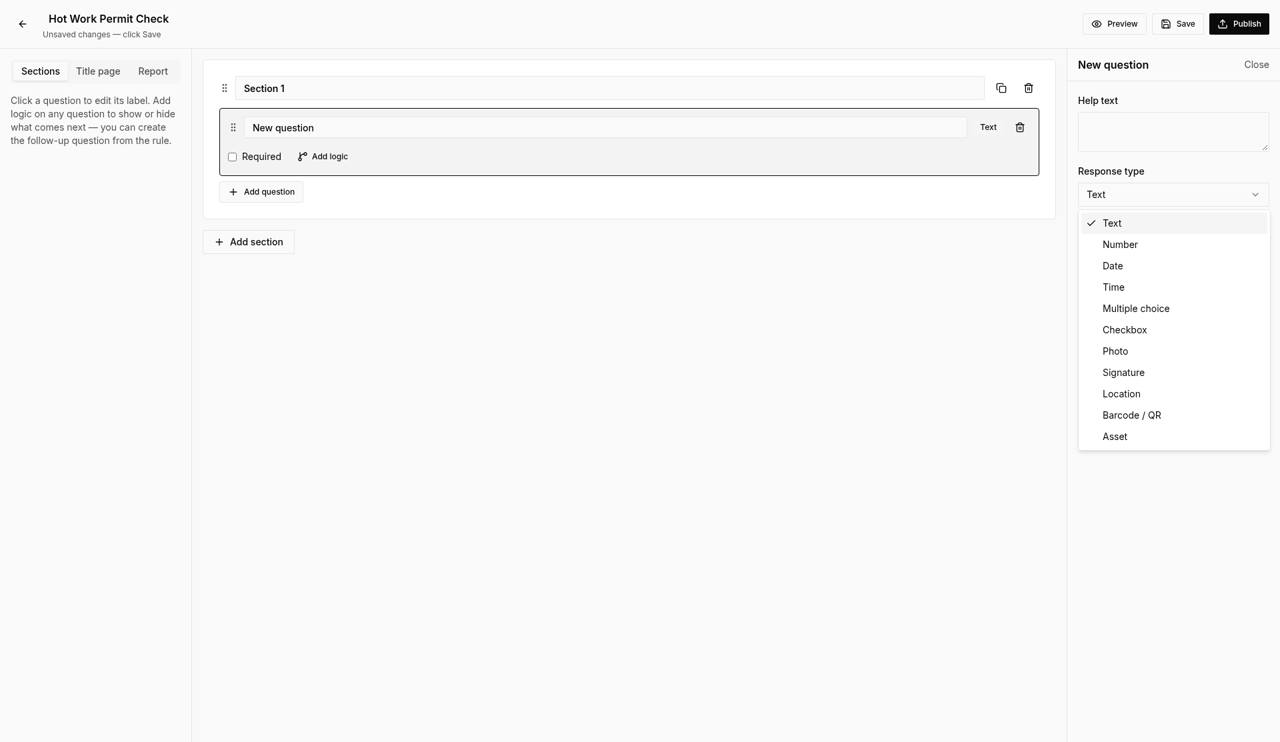
Select Add question, then pick the response type for the question.
 4
4 - 5
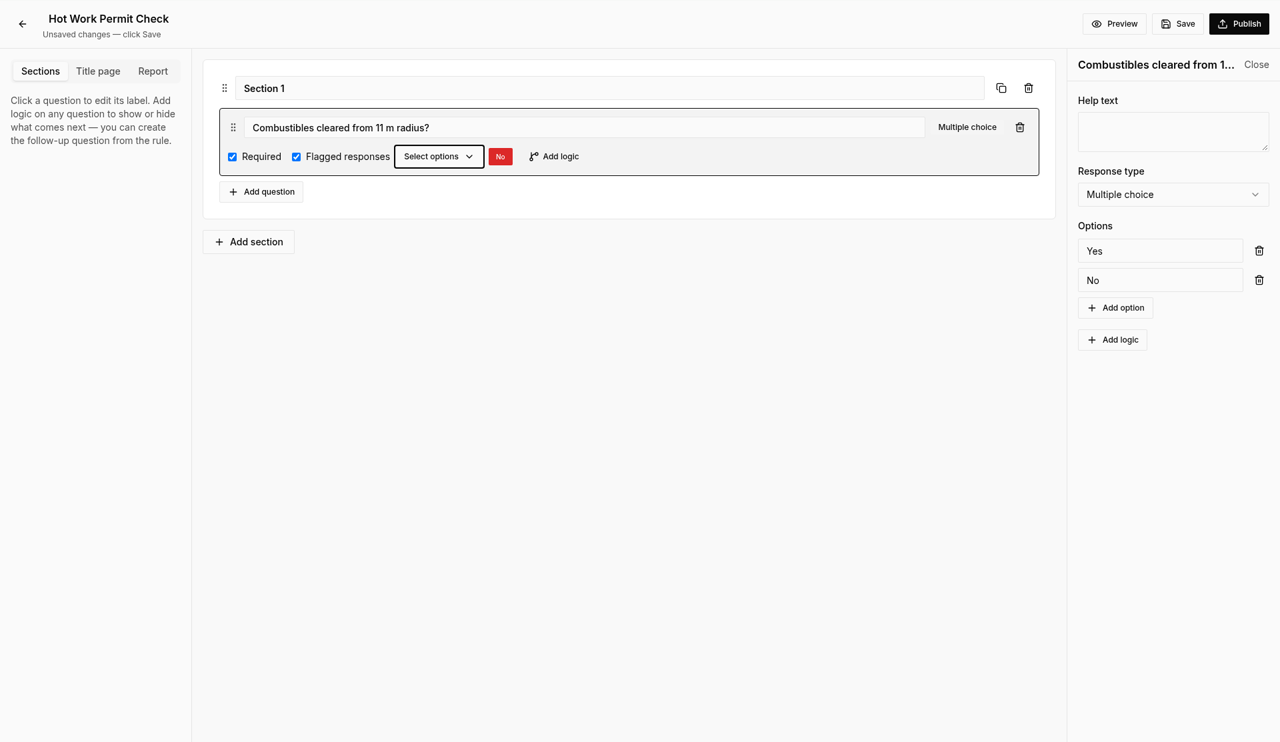
Tick Required for questions that must be answered.
 5
5Note
Only Admins and Site Managers can create, edit and publish templates. Inspectors and Viewers can see published templates, and Inspectors can use them to do inspections. Only Admins can delete a template.
- 6
Under Flagged responses, choose the answers that need follow-up, for example No.
6 - 7
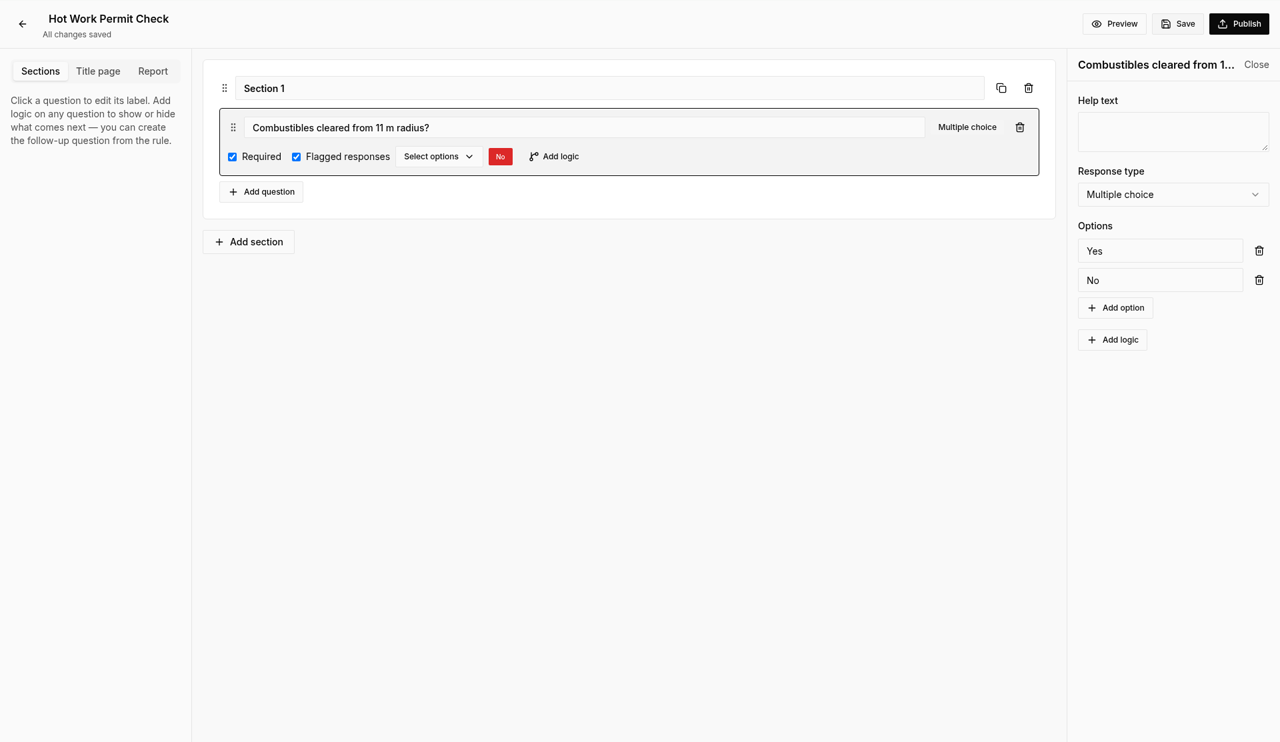
Select Publish, then confirm.
 7
7Careful
Publishing locks this version, and it can't be changed after that. To make changes, edit the new draft Syraxis creates for you and publish again. Inspections that have already started keep the version they started with. Only new inspections use the new version. Archived templates can't be restored, so only archive a template you no longer need. Delete cannot be undone.
- 8
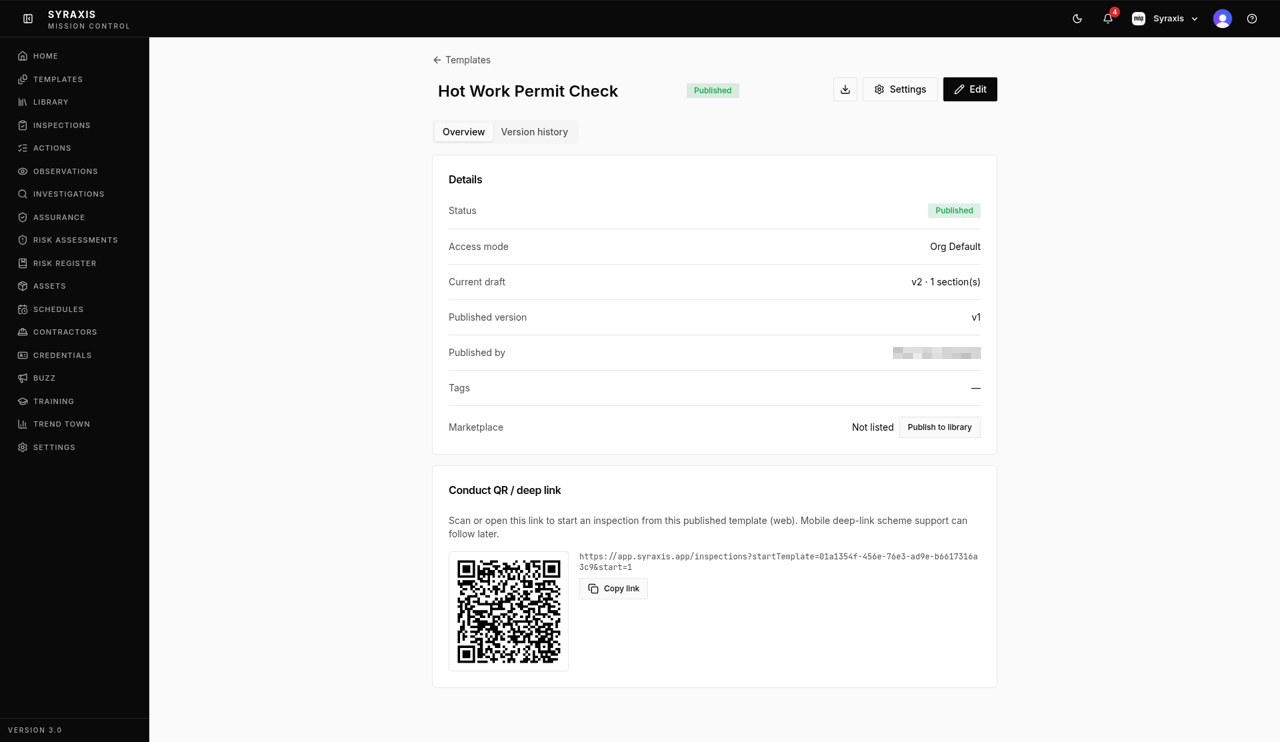
Check that the status shows Published. Older versions are under Version history.
 8
8
What's next
- Do an inspection Complete an inspection and submit it.
- Schedule a recurring inspection Send an inspection on a repeat to people, assets, groups or contractor companies.
Still stuck?
Send us a message and tell us what you were trying to do. A screenshot helps.
Contact usUpdated 13 Oct 2026