On this page
Upload your safety file (contractors)
You will complete your safety file and send it for review.
What you'll need
- An invite from the company you work for.
- Your company documents ready.
- Medical fitness certificates for the people on the file.
Steps
- 1
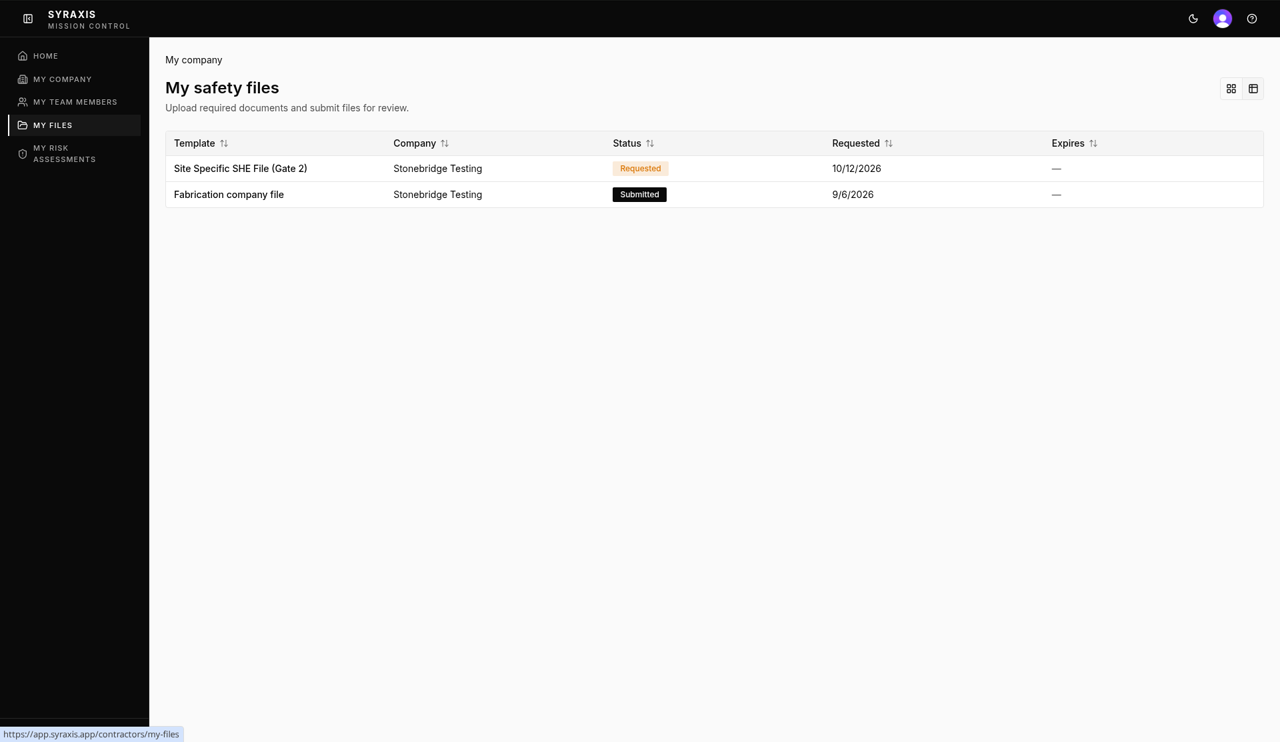
Select My Files and open the safety file that shows Requested.
 1
1 - 2
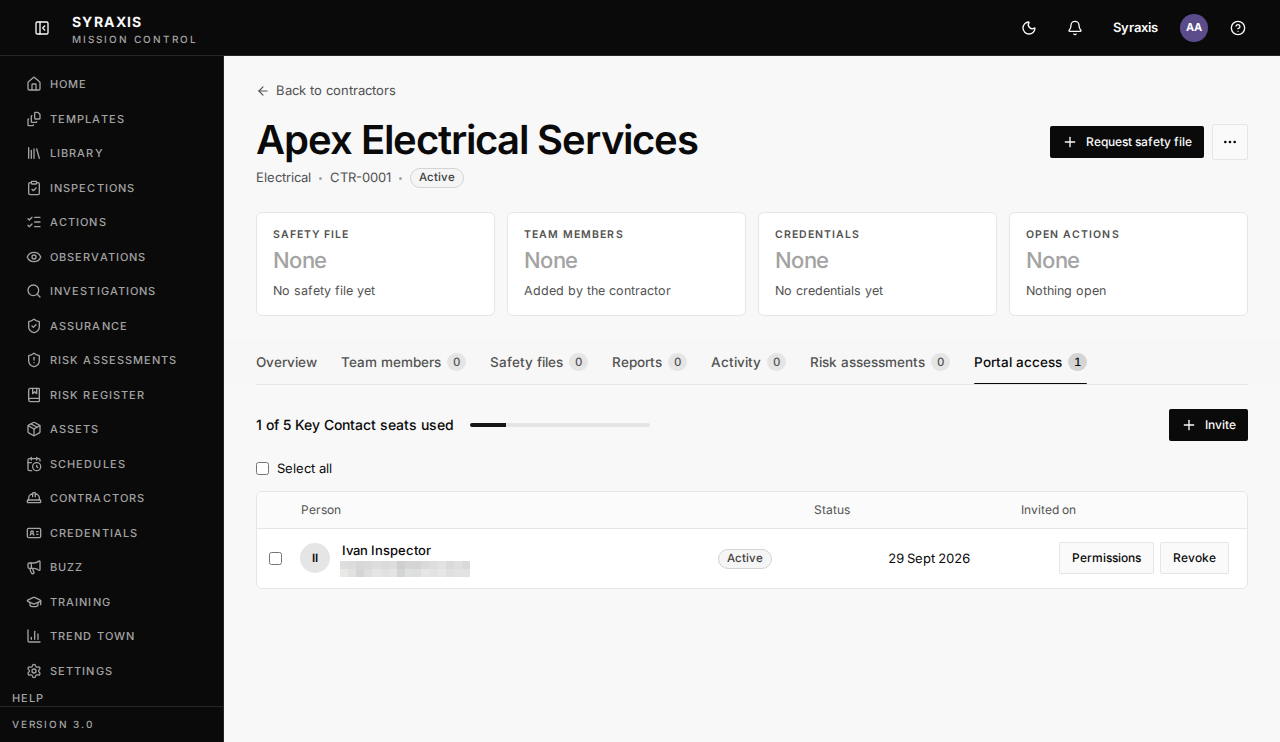
Open the company and select the Portal access tab. People shown as Active can sign in and add certificates to the file.
 2
2 - 3
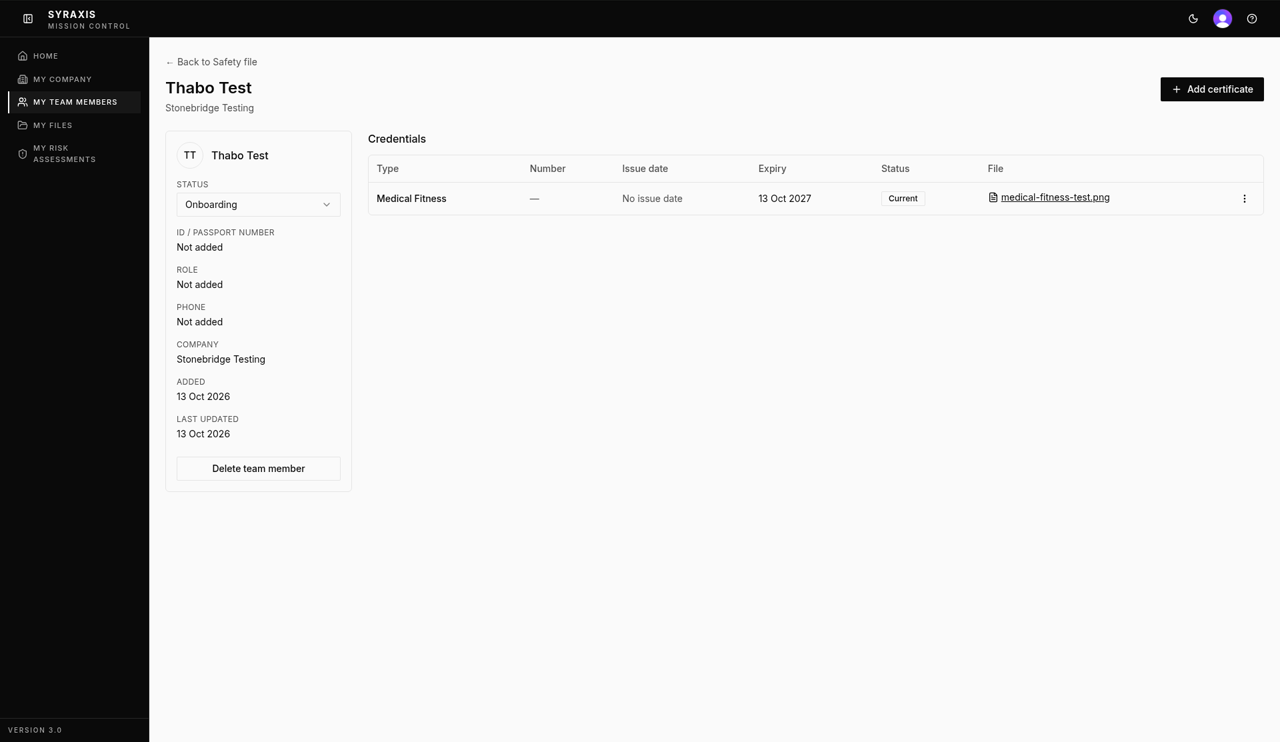
Open their name, then select Add certificate.
 3
3 - 4
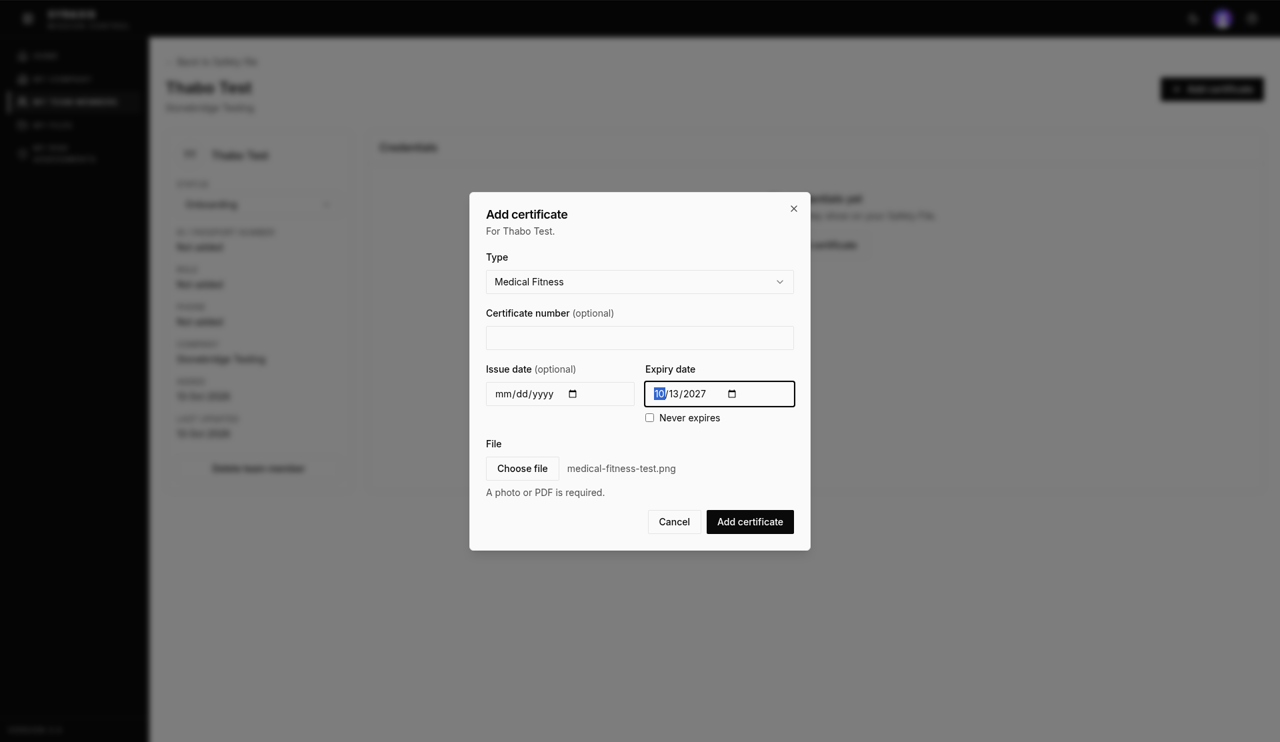
Choose the Type, for example Medical Fitness.
 4
4 - 5
Set the Expiry date, or tick Never expires.
5 - 6
Select Choose file and pick the certificate.
6 - 7
Select Add certificate.
7 - 8
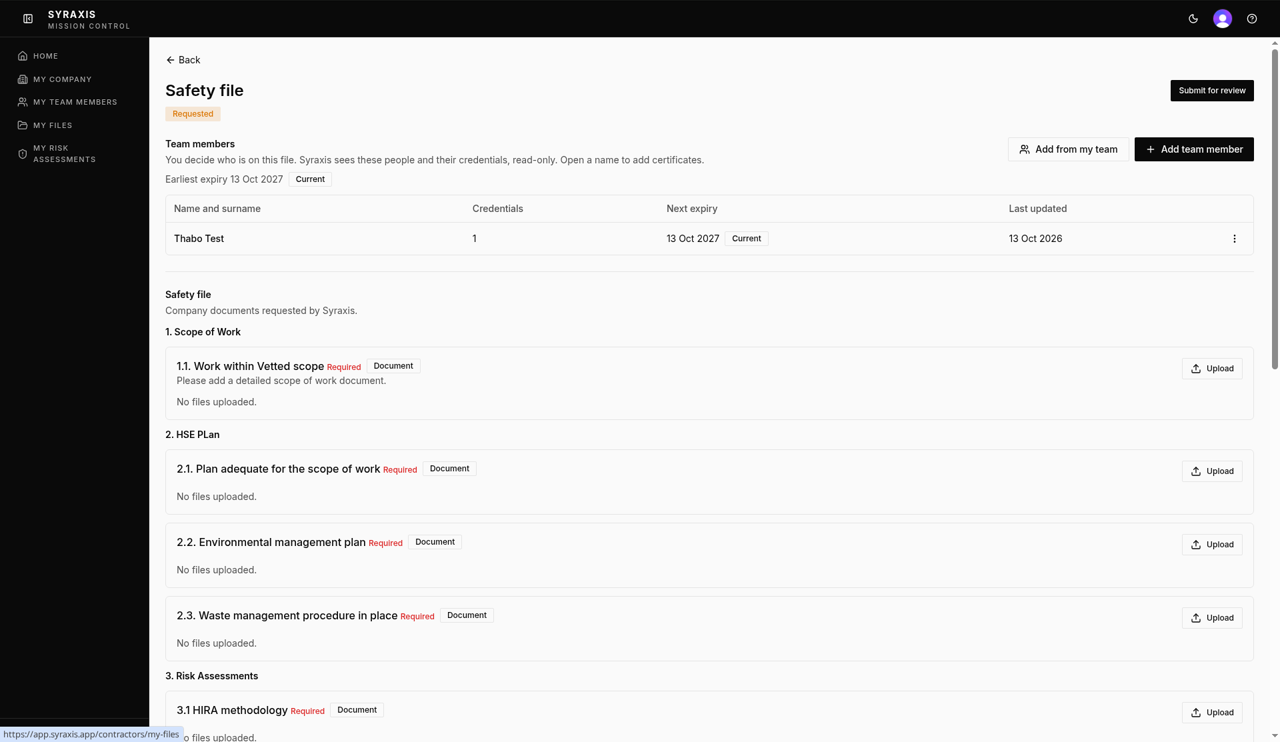
Back on the safety file, select Upload next to each required document and choose the file.
 8
8 - 9
Select Submit for review.
9
Tip
Manage your people any time under My Team Members. Open a name there to add or update certificates.
Note
A photo or PDF is required for each certificate. If the file comes back, the reason shows at the top. Fix it and submit again. The list of files is called My safety files.
What's next
- Review a safety file Check a contractor's safety file, then approve it or send it back.
Still stuck?
Send us a message and tell us what you were trying to do. A screenshot helps.
Contact usUpdated 13 Oct 2026