On this page
Do an inspection
You will complete an inspection and submit it.
InspectorSite ManagerAll plans
What you'll need
- A published template (see Create and publish a template).
Steps
- 1
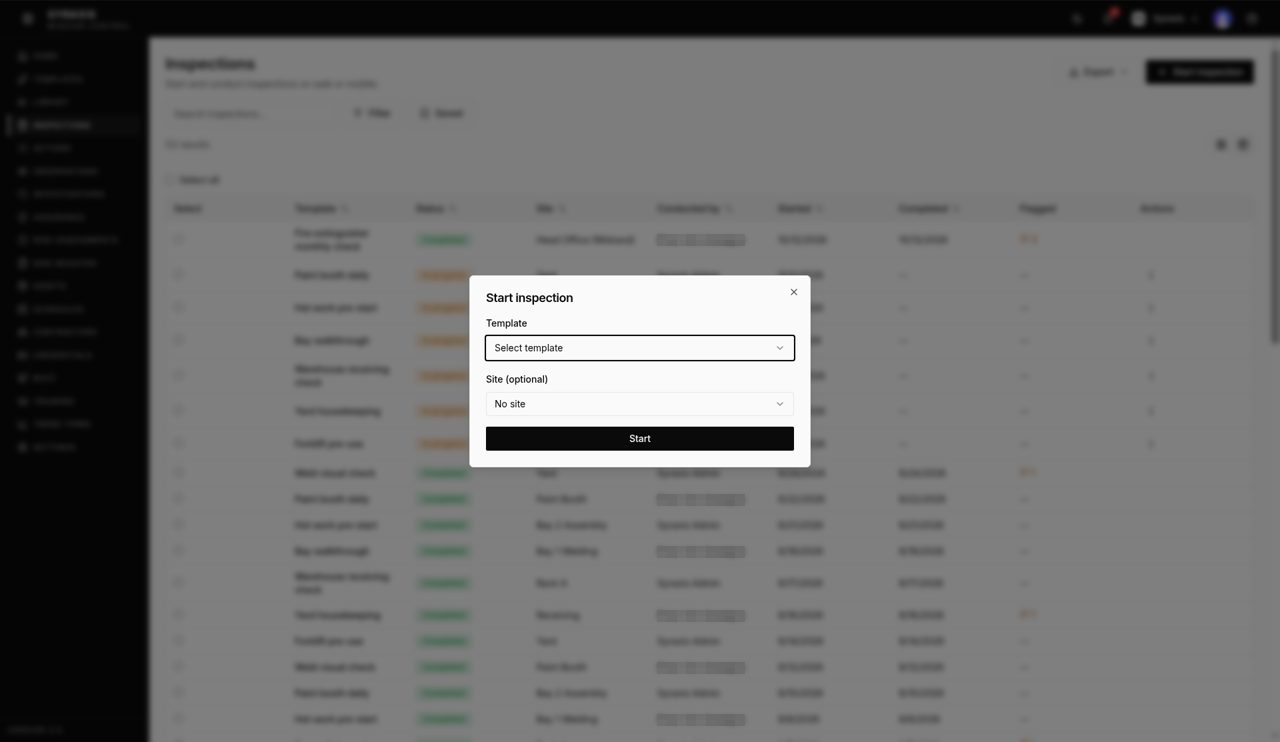
Open Inspections and select Start inspection.
 1
1 - 2
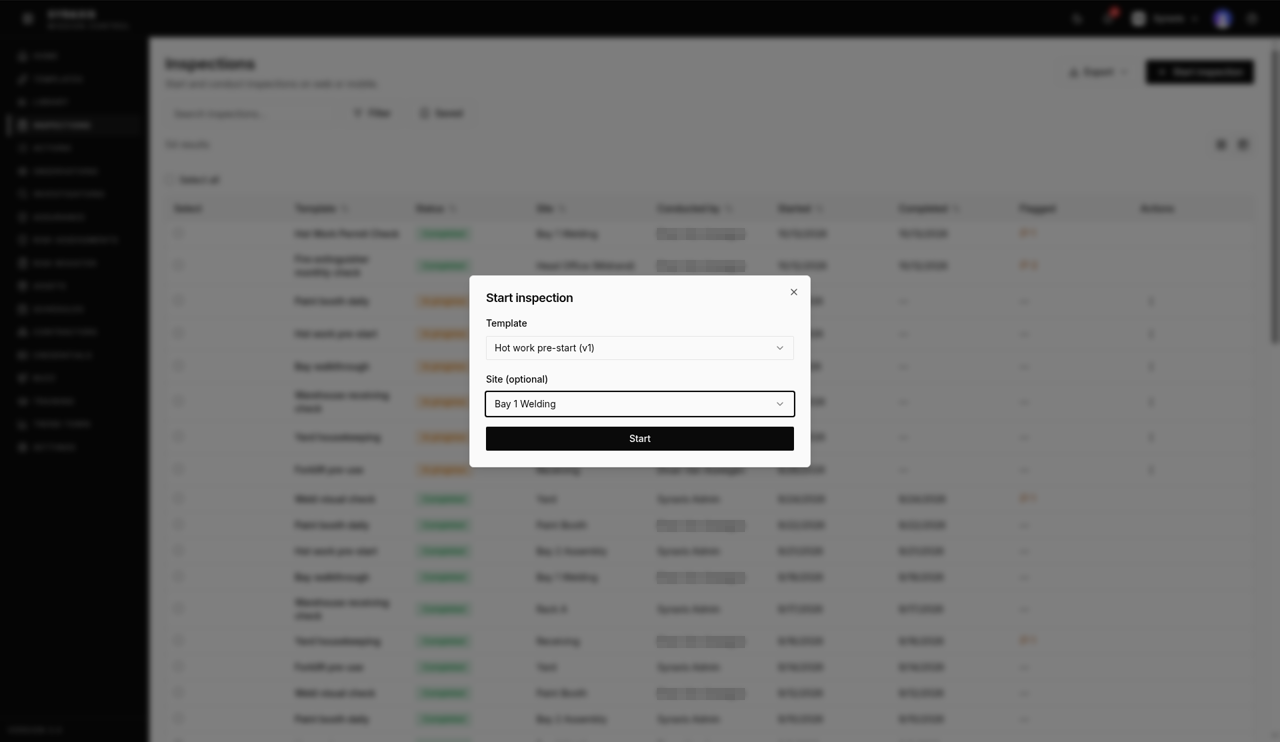
Choose the Template. Pick any published template, for example Hot work pre-start.
 2
2 - 3
Choose the Site (optional), for example Bay 1 Welding, then select Start.
3 - 4
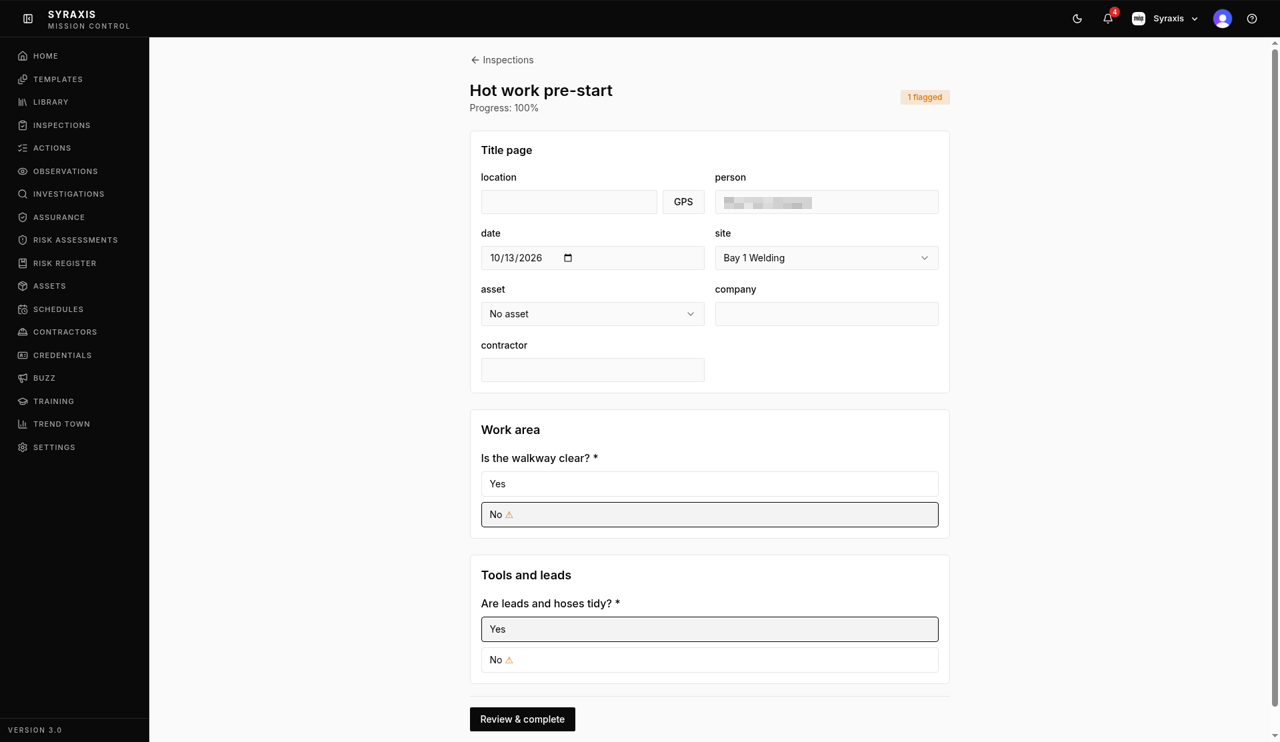
Answer each question. If a question asks for a Photo, add it there.
 4
4 - 5
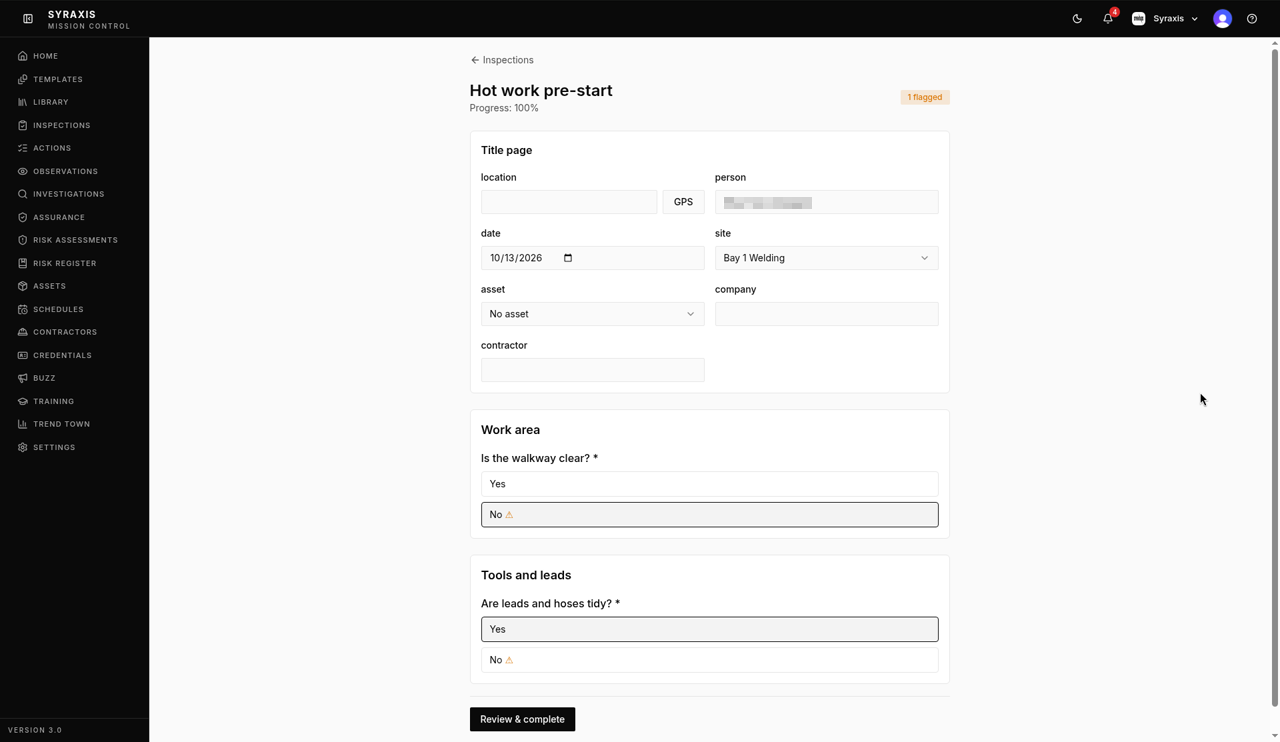
Select Review & complete.
 5
5 - 6
Select Create action on a flagged item to raise a fix, or Skip it.
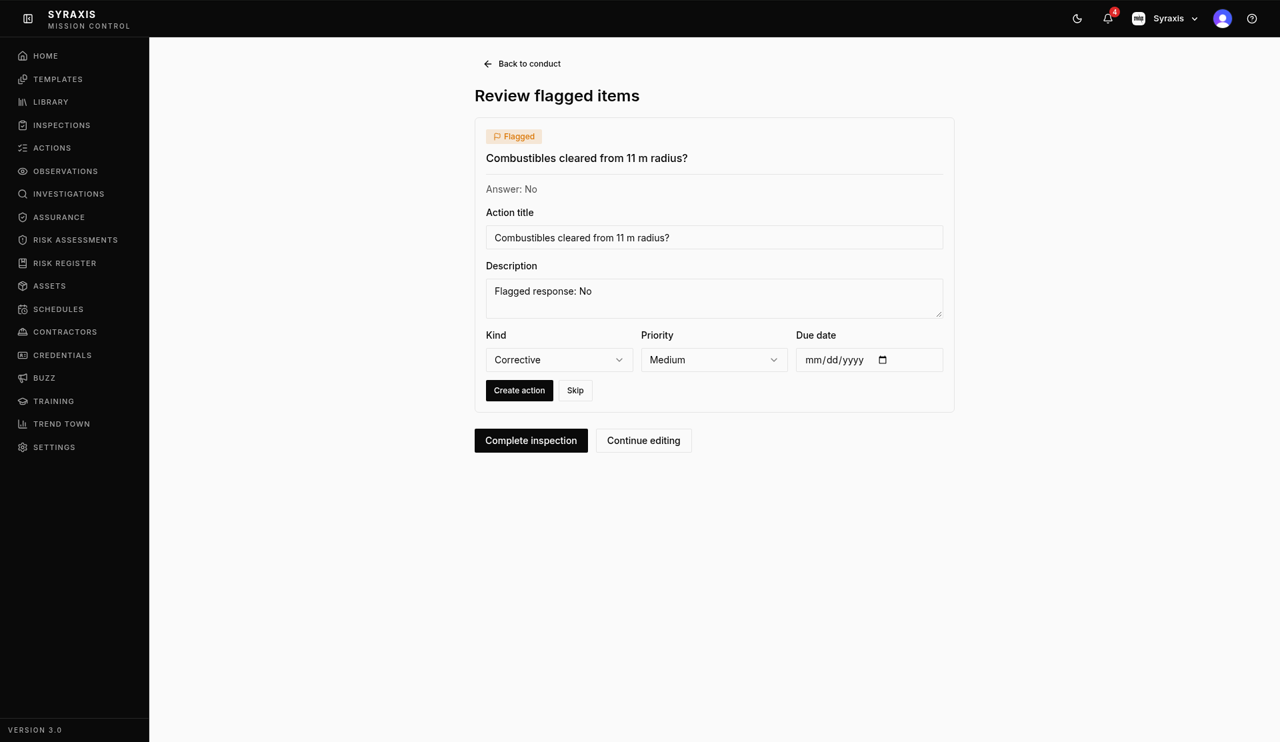 6
6 - 7
Select Complete inspection.
7 - 8
Select the Download PDF icon to save or share the report.
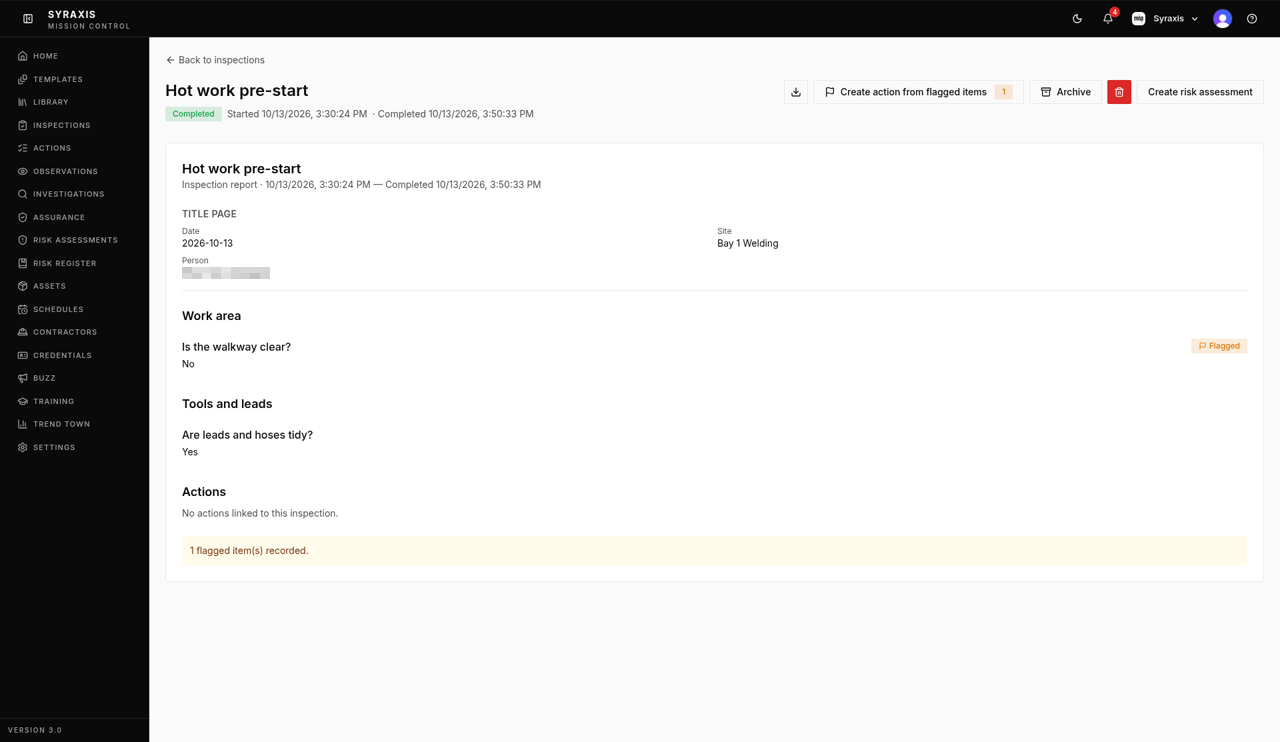 8
8
Note
Inspections aren't scored. The report shows how many items were flagged.
What's next
- Raise and close an action Assign a fix, track it and close it with a note of what was done.
Was this helpful?Thanks for telling us.
Still stuck?
Send us a message and tell us what you were trying to do. A screenshot helps.
Contact usUpdated 13 Oct 2026